InsaneNutter
Resident Nutter
The Problem:
A lot of mobile providers might give you "unlimited data" or a certain amount of data, however block you from tethering. By blocking tethering I mean only allowing you to use your data allowance on the phone, not on a tablet, laptop, pc or any other device.
The Solution:
Turn your mobile phone in to a VPN gateway. Presuming you are able to connect to a VPN on your mobile device, which you should be able to. You can turn your Android mobile device in to a VPN gateway, which will send any tethered traffic through the VPN. This means your mobile provider can not see the traffic as its encrypted. The advantage of turning the phone in to a VPN Gateway is that you dont need to run any additional VPN applications on your mobile devices, this can be especially useful for a Windows Laptop / Tablet. The reason been is Windows like to send internet traffic as your connecting to a wireless network, my mobile provider detects this traffic and blocks my internet access on the phone before I even have time to connect to a VPN on the Windows mobile device.
However using a VPN gateway any tethered traffic will always be going through the VPN, so unless your mobile provider blocks the use of VPN's they will never know your tethering. Result!
Please note: you need some knowledge of networking and using a rooted Android device to follow this tutorial, i have tried to make it as easy as possible to follow, however it will be a lot easier if you have some background knowledge.
Firstly before we go any further you are going to need the following:
- A rooted Android device
- A VPN server running either at home (free) or on a server somewhere on the internet.
If you use the coupon code "2YDeal2017" you can get 2 years service for only $79.99 which is a massive steal. I picked NordVPN because of its zero logging policy, it's Netflix US friendly as well as P2P friendly while operating out of Panama meaning DMCA and Blocking Streams just doesn't happen.
How to root your Android device and setup a VPN sever is simply beyond the scope of this tutorial, however its very easy to setup a VPN server with the OpenVPN Virtual Appliance. You can basically download a pre-configured Virtual Machine for Microsoft's Hyper-V or VmWare ESXI, answer a few questions when the Virtual Machine launches and have secure a VPN server up and running on your network in a matter of minutes.
As for rooting your phone, find the forum section for your mobile device on XDA Developers and you should find various tutorials on how to root the Android Mobile device you own.
How to setup a VPN gateway on Android:
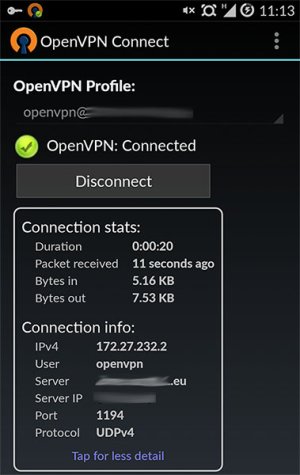
First you need OpenVPN Connect installed on your Android device, this is free on the Google Play store, load OpenVPN Connect and connect to your VPN
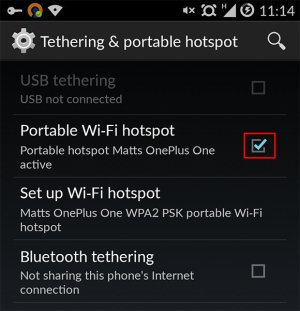
Now go to Settings > More > Tethering & Portable Hotspot and enable the Portable Wi-Fi Hotspot
Now open the Android Terminal Emulator, this can also be downloaded from Google Play if its not present on your device.
Type Su to enable super user access (root)
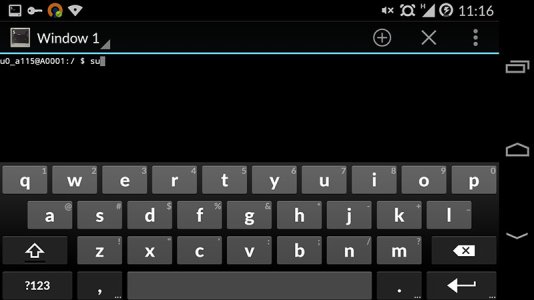
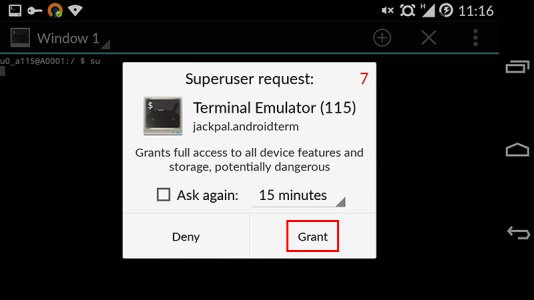
Grant super user access to Terminal Emulator if required:
Now type netcfg to show the name / status of the various network interfaces:
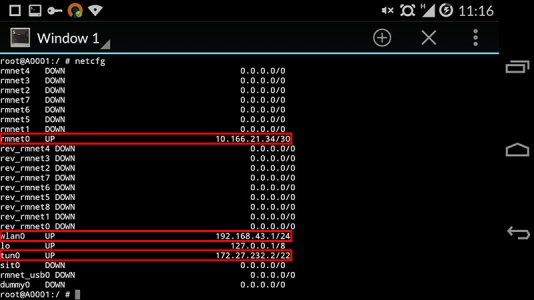
You will see above i have the following active interfaces:
rmnet0 - this is the phones 2g / 3g or 4g data connection
wlan0 - this is the phones wi-fi connection that your devices will be connecting to
tun0 - this is our VPN tunnel that we want to send all the traffic of wlan0 through
These interfaces should have the same name on all modern Android devices, however double check.
You now want to basically type the following in to the Android Terminal Emulator to configure IP tables to route any traffic from wlan0 (the Wi-Fi hotspot on your phone) through the VPN connection (tun0)
If you have not already gained super user rights type Su, then copy and paste the following below:
Code:
iptables -t filter -F FORWARD
iptables -t nat -F POSTROUTING
iptables -t filter -I FORWARD -j ACCEPT
iptables -t nat -I POSTROUTING -j MASQUERADE
ip rule add from 192.168.43.0/24 lookup 61
ip route add default dev [B]tun0[/B] scope link table 61
ip route add 192.168.43.0/24 dev [B]wlan0[/B] scope link table 61
ip route add broadcast 255.255.255.255 dev [B]wlan0[/B] scope link table 61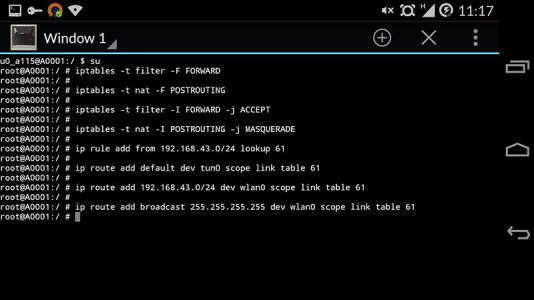
Tip: copy and paste the above in to the Terminal Emulator to saver you typing it out line by line on your phone and possibly making mistakes. Maybe save it as a txt file on your phones SD card and copy and paste from that, as i have done below.
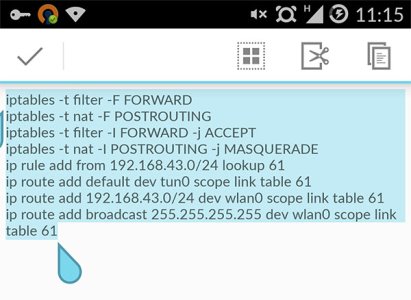
That basically it for the configuration on your phone, the changes will however be lost when the phone is reset.
To make the changes permanent create a file called userinit.sh in /data/local and paste all the iptable commands in it. This will basically run the IP tables commands again when the phone boots, saving you from doing so manually.
An easy way to do this is with Root Explorer which can be downloaded on the Google Play Store, this is a paid for app, however very useful to have on your device.
On your client devices:
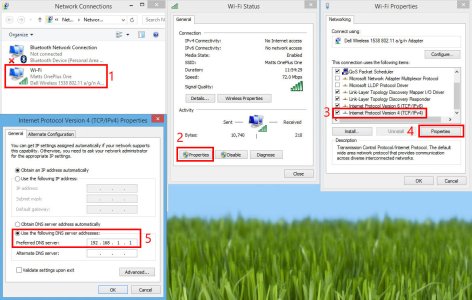
The only configuration you need to do on your client devices is set the DNS server to point to the DNS server on the network you have connected to with your VPN, this would basically be the IP address of your home router unless you have another device configured for DNS queries on your network. I have no idea how to make Android hand out the correct DNS server unfortunately, were basically playing with two separate things not designed to work together and making them place nice with a bit of trickery. However its a very minor inconvenience to change the DNS settings on your client devices.
Here is how to change the DNS settings on a Windows device, 192.168.1.1 is the ip address of my home router on the local network, which is the DNS server my client devices use.
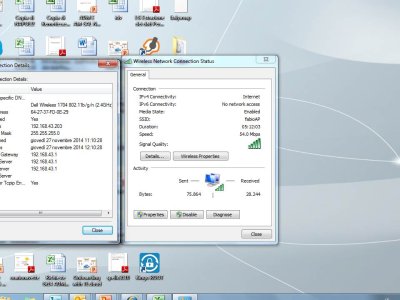
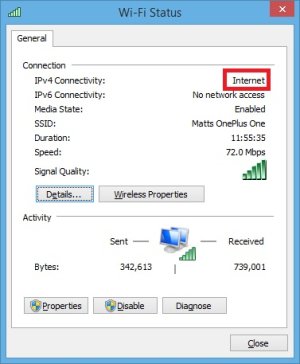
Once you have changed the DNS server address Windows should be happy it has internet access:
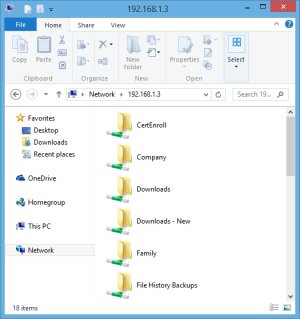
Both your mobile phone and any client device connected to it via tethering can access any resources on your home network, such as network shares:
There you go, hopefully you have now leaned how to turn your Android device in to an OpenVPN gateway, allowing tethering even if your mobile provider blocks. The additional bonus is you can access services and network shares on your home network using your laptop, even when away from home.
Running an OpenVPN gateway on your phone is handy as it allow devices which cant run OpenVPN, such as Windows RT devices or even an Xbox games console to still connect to a remote network through OpenVPN.

 5:fe:ca:94:49