

Nimrod
Dev Ops
- Joined
- Jun 1, 2007
- Messages
- 1,511
IIS Web Server: Automatically detect 500 (Internal Error) and Recover the Application Pool
There's nothing worse than when you first deploy your production IIS + PHP setup (or even ASP.NET) and after a few hours or days find your site is offline with Error 500 ‘Internal Server Error' causing you hours of downtime until you noticed it and reboot IIS. The cause of this is usually because the PHP Application Pool powering your site has experienced an error and died a painful death but for some reason IIS didn't detect this and automatically reboot your Application Pool.
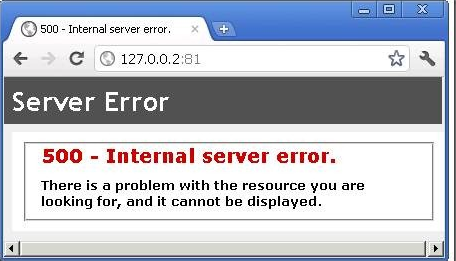
You can spend hours, or weeks debugging the situation. Is it your configuration issue or is it an error in your application? I know it took us a lot of tweaking at Digiex to get it perfect and stable. However during this time your site is up and down like a yoyo, and if you rely on ad revenue and search engine traffic all this downtime can be dangerous to your bottom line.
For reference, we eventually stabilized it by turning off Rapid-Fail Protection, enabling idle time outs for to 30 minutes on PHP processes, set processing time limits of 60 seconds and setting the FastCGI Standard error mode to TerminateProcess as errors are returned. However these settings will likely be different for your environment based on the type of scripting you use (PHP, ASP.NET etc), the amount of traffic and the scripts you use.
However these results took 3 weeks of damaging downtime to become realized, and during this time we created a fantastic script that ran every 30 minutes via a scheduled task and checked the site is still online. If it wasn't, it took automated actions to check its offline for sure then bring it back online if it's still down by resetting IIS.
The script runs via scheduled task set at an interval of your choosing.
It has the following logic:
Create HTTP connection to the website and see what the response code was using curl.exe
If it got 200 (which stands for ok, the script finishes).
If it got a response over than 200 (say like 500 for Internal Server error) it would activate Fail Safe Mode.
Fail Safe Mode:
Create another connection to see if it was a one off, if message other than 200 received add one to the counter.
Wait 5-20 seconds, repeat again until either a 200 response was received or until the Fail counter hit 5.
Once 5 consecutive fail responses are received in Failsafe mode, it would hit the IISReset.exe process in the system32 folder which would cause IIS to come to a full stop and terminate the web processes and application pools then restart fresh.
Basically the script is designed to check the error code, but excuse the occasional error you may experience and ensure if it's going to do a full reset of your web server that it is indeed down.
Download:
If you would like to use the code, you can download it below:
Download Digiex IIS 500 Error Detection and Recovery Script for IIS
To customize the script to your needs:
Change any reference digiex.net to the full URL of your site.
Make sure it goes to a valid page and not a HTTP redirect (which would give a 301 redirect response). So if site.com redirects to site.com/home.php then make sure you put the full site.com/home.php URL in its place.
Change anything related to ‘Digiex' to a friendly name for your site if you wish to de-brand it.
Note: While we let you de-brand it and use it freely for personal use, we would ask you not to distributed it elsewhere without the Digiex Branding as it's our hard work that tested and built this script.
Once you have the script, I would recommend running it as a scheduled task as an Administrator (Administrator rights are required to run the IISreset.exe process).
Run as a Scheduled Task
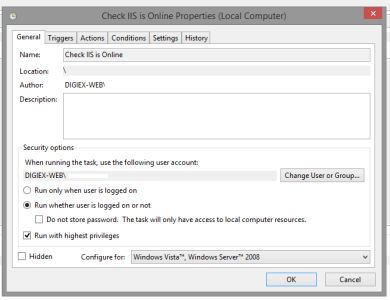
To do so, go to Control Panel > Administration Tools > Task Schedular and select Create Task.
It's important you set the following setting:
When running the task, use the following user account (and select you're own or another Administrator level account)
Run whether user is logged on or not.
Run with highest privileges
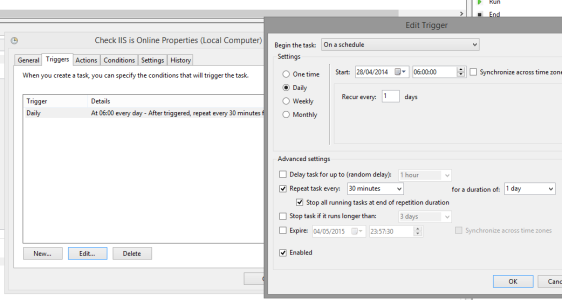
Set it to run Daily, and repeat at a set time (recommended 30 minutes):
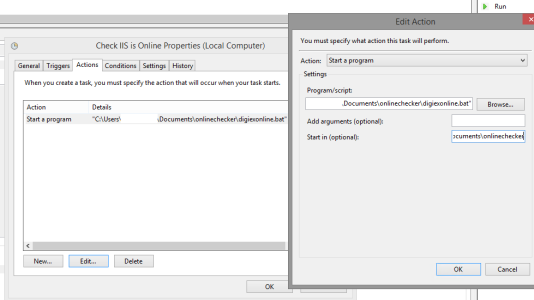
Set the Actions which is to start the bat file, as well as make sure the Start in field is filled with the full folder location of where the script is stored so that when it's running, it can find the curl.exe which is a required part of the script to allow it to check the HTTP Status Code
Done, the script is now installed and monitoring your web server. On the Last Run Result if it shows the result (0x0) it means it has run successfully.
If you wish to monitor if the script has had any errors and reset IIS, you can check the Event Viewer and you will find notices like this whenever it has actioned any restarts for you in the System Log:
Code:
IIS stop command received from user DIGIEX-WEB\ADMINUSERTEST. The logged data is the status code.

IIS start command received from user DIGIEX-WEB\ADMINUSERTEST. The logged data is the status code.



