

InsaneNutter
Resident Nutter
This tutorial will show you how to take screenshots of any application / game running on your Jtagged Xbox 360 using the Xbox 360 SDK.
The advantage of using the SDK to take screenshots is you do not need a HD capture card to take high quality screenshots, you can do it directly from your computer.
The disadvantage however is you will need to find the Xbox 360 SDK, it shouldnt be hard at all if your capable of using Google, however I can not link to it here, any requests for it will be ignored / deleted.
You will require:
Getting started:
This guide will presume you have some basic knowledge about your Jtagged Xbox 360, Dashlaunch will already be installed and you will have some way of copying files on to your Xbox 360's internal hard drive.
Copy xbdm.xex to the root of your internal hard drive.
Now edit your launch.ini (should also be on the root of your hard drive) and add:
Here is my launch.ini to refer to if you are having trouble.

When xbdm.xex is on the root of your hard drive, and you have told your launch.ini to load xbdm.xex as a plugin turn your console off and turn it back on again. The xbdm plugin will load and always be running in the background.
You should now be ready to configure the Xbox 360 SDK to find your Jtag.
Click the Xbox 360 Neighborhood icon on your desktop, then click Add Xbox 360

Click next

Enter the IP address of your Jtagged Xbox 360

If you do not know the IP address of your console you can find it out under System Settings > Network Settings > (Select wired or wireless depending on your 360's connection) > Configure Network
Your IP address will be shown:

Next set your Jtag as the default Xbox 360 Development Kit when asked

You should now be setup

Taking a screenshot:
When you enter the Xbox 360 Neighborhood you should see a development kit present called Jtag

To take a screenshot all you need to do is right click on the Jtag icon and select "Screen Capture"

A screenshot of what ever is on the Xbox 360's screen at the time will be saved in your My Pictures folder on your PC
Example: The Dashboard, click for a full 1080p screenshot.

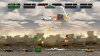
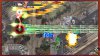
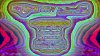
Taking screenshots of certain games produces some weird results, Geometry Wars 2 is a good example of this. However in general you should be able to take high quality screenshots of many games.
If you want to disable the plugin simply remove the plugin1 = Hdd:\xbdm.xex from your launch.ini and re start your console.
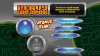
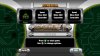
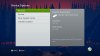
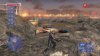
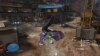
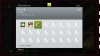
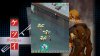
Some random screenshots I have taken are attached below, enjoy.
The advantage of using the SDK to take screenshots is you do not need a HD capture card to take high quality screenshots, you can do it directly from your computer.
The disadvantage however is you will need to find the Xbox 360 SDK, it shouldnt be hard at all if your capable of using Google, however I can not link to it here, any requests for it will be ignored / deleted.
You will require:
- A Jtagged Xbox 360 connected to your home network
- Dashlaunch installed
- Xbdm.xex
- The Xbox 360 SDK installed on your computer (If you Google XDKSetupXenon11164.3.exe you might find it)
Getting started:
This guide will presume you have some basic knowledge about your Jtagged Xbox 360, Dashlaunch will already be installed and you will have some way of copying files on to your Xbox 360's internal hard drive.
Copy xbdm.xex to the root of your internal hard drive.
Now edit your launch.ini (should also be on the root of your hard drive) and add:
[Plugins]
plugin1 = Hdd:\xbdm.xex
Here is my launch.ini to refer to if you are having trouble.
When xbdm.xex is on the root of your hard drive, and you have told your launch.ini to load xbdm.xex as a plugin turn your console off and turn it back on again. The xbdm plugin will load and always be running in the background.
You should now be ready to configure the Xbox 360 SDK to find your Jtag.
Click the Xbox 360 Neighborhood icon on your desktop, then click Add Xbox 360
Click next
Enter the IP address of your Jtagged Xbox 360
If you do not know the IP address of your console you can find it out under System Settings > Network Settings > (Select wired or wireless depending on your 360's connection) > Configure Network
Your IP address will be shown:
Next set your Jtag as the default Xbox 360 Development Kit when asked
You should now be setup
Taking a screenshot:
When you enter the Xbox 360 Neighborhood you should see a development kit present called Jtag
To take a screenshot all you need to do is right click on the Jtag icon and select "Screen Capture"
A screenshot of what ever is on the Xbox 360's screen at the time will be saved in your My Pictures folder on your PC
Example: The Dashboard, click for a full 1080p screenshot.

Taking screenshots of certain games produces some weird results, Geometry Wars 2 is a good example of this. However in general you should be able to take high quality screenshots of many games.
If you want to disable the plugin simply remove the plugin1 = Hdd:\xbdm.xex from your launch.ini and re start your console.
Some random screenshots I have taken are attached below, enjoy.
Attachments
-
 screen1.jpg247 KB · Views: 2,412
 -
 screen2.jpg222 KB · Views: 5,452
 -
 screen3.jpg233.1 KB · Views: 1,958
 -
 screen4.jpg150.8 KB · Views: 2,277
 -
 screen5.jpg143.8 KB · Views: 2,979
 -
 screen6.jpg290.1 KB · Views: 2,511
 -
 screen7.jpg214.6 KB · Views: 2,742
 -
 screen8.jpg248.5 KB · Views: 5,737
 -
 screen9.jpg393.9 KB · Views: 2,172
 -
 screen10.jpg287 KB · Views: 2,211
 -
 screen11.jpg442.7 KB · Views: 2,081
 -
 screen12.jpg159.7 KB · Views: 2,347
 -
 screen13.jpg272.4 KB · Views: 2,171
 -
 screen14.jpg1.4 MB · Views: 4,530




