

InsaneNutter
Resident Nutter
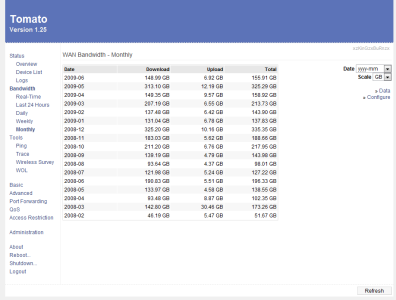
If your router is running the Tomato firmware you will probably be aware the router can log your bandwidth usage, the bandwidth log could be useful if you have a limit each month or just want to keep track of your internet usage.
In its default configuration the router will lose the logs when its powered down or re started, this guide will show you how to automatically backup the logs to a remote ftp server every 12 hours.
Before you begin you will need some ftp space on a remote server, if you have some free webspace on your isp’s server this will be perfect.
1] First log on to your router then go to Administration > Scripts or http://192.168.1.1/admin-scripts.asp
2] In the shutdown box add:
3] In the wan up box add:
Modify your FTP username, password, port and hostname as appropriate.
Thats it, your good to go!
You can test this works by surfing the net for a bit or downloading something, then use the shutdown button on the routers web interface. It should upload the bandwidth logs then download them again when the router re starts. (it can take a minute or two after the router loading up for the logs to appear again)
I take no credit for creating the script used in this guide, I found it on a random website after spending a long while looking for a solution to backup the logs to a remote server.
In its default configuration the router will lose the logs when its powered down or re started, this guide will show you how to automatically backup the logs to a remote ftp server every 12 hours.
Before you begin you will need some ftp space on a remote server, if you have some free webspace on your isp’s server this will be perfect.
1] First log on to your router then go to Administration > Scripts or http://192.168.1.1/admin-scripts.asp
2] In the shutdown box add:
Code:
if [ ! -s /tmp/restore-rstats ] ; then  {make sure any previous restore was successful, or we will overwrite the backup with nothing...}
/tmp/backup-rstats
fi
3] In the wan up box add:
Code:
USER="FTP Username"
PASS="FTP Password"
PORT=21
SERVER="IP or Hostname of the FTP server"
RPATH="/rstats.tgz"
RPATH_DATE="/rstats\`date +%Y.%m.%d-%H.%M.%S\`.tgz"
LPATH="/tmp/rstats.tgz"

if [ ! -s /tmp/backup-rstats ] ; then
    echo -e "#!/bin/sh\nkillall -1 rstats\nsleep 1\ntar -czf \"$LPATH\" /tmp/var/lib/misc/rstats-*\nftpput -u \"$USER\" -p \"$PASS\" -P $PORT $SERVER \"$RPATH\" \"$LPATH\"\nftpput -u \"$USER\" -p \"$PASS\" -P $PORT $SERVER \"$RPATH_DATE\" \"$LPATH\"\nrm \"$LPATH\"" > /tmp/backup-rstats
    chmod 777 /tmp/backup-rstats
    echo -e "#!/bin/sh\nservice rstats stop\nftpget -u \"$USER\" -p \"$PASS\" -P $PORT $SERVER \"$LPATH\" \"$RPATH\"" > /tmp/restore-rstats
    echo -e "if [ \$? != 0 ] ; then\n  logger RStats Restore Failed... will retry\n  cru a rstats \"*/5 * * * * /tmp/restore-rstats\"\n  return 1\nfi\ntar -xzf \"$LPATH\" -C /\nrm \"$LPATH\"\nservice rstats start\ncru a rstats \"1 */12 * * * /tmp/backup-rstats\"" >> /tmp/restore-rstats
    echo -e "logger RStats Data Restored\nrm /tmp/restore-rstats" >> /tmp/restore-rstats
    chmod 777 /tmp/restore-rstats
    /tmp/restore-rstats
fi
Modify your FTP username, password, port and hostname as appropriate.
Thats it, your good to go!
You can test this works by surfing the net for a bit or downloading something, then use the shutdown button on the routers web interface. It should upload the bandwidth logs then download them again when the router re starts. (it can take a minute or two after the router loading up for the logs to appear again)
I take no credit for creating the script used in this guide, I found it on a random website after spending a long while looking for a solution to backup the logs to a remote server.

 I'm glad you already have a guide for this.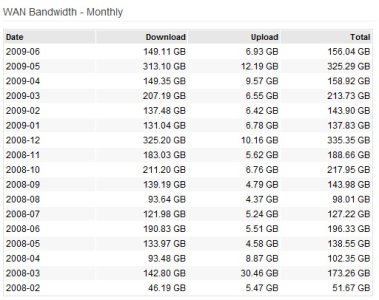


 I would like to know if someone has a clue as to what the problem could be.




