

Nimrod
Dev Ops
- Joined
- Jun 1, 2007
- Messages
- 1,514
Following this step by step guide to download SwitchDNS and set it up so you can browse any website on your Nintendo Switch Console.
The Nintendo Switch launches without a Web Browser; or so we thought. It turns out there is one built into the console which is used for when logging into public hotspots (which require signing into via a Webpage). You can use this to insert custom web pages and in the case of the SwitchDNS tool; allows you to enter any URL you wish to go to.
Warning; you will need some technical knowledge as you will be downloading a python script and running it on your PC and redirecting the DNS queries from your Switch to your PC.
We wish to give credit to the developer parrotgeek1 who made this possible and freely published his code on GitHub.
Downloading SwitchDNS
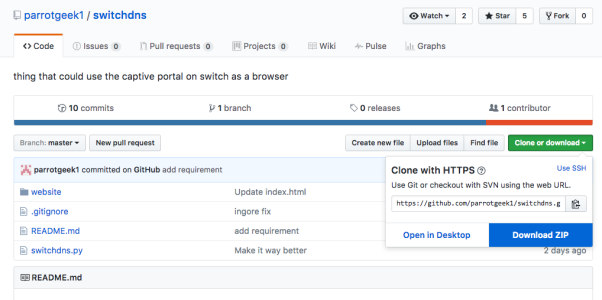
Firstly, you will need to Download SwitchDNS which can be done at the following URL:
Download SwitchDNS for Nintendo Switch
Next steps involves installing Python or Bash (Different for Windows vs Mac):
Windows Users:
Windows users will need to be running Windows 10 and have Bash (Ubuntu Subsystem) for Windows 10 installed. This will only work on 64bit versions of Windows 10.
To set this up you need to first follow this tutorial here: Install Bash (Ubuntu Linux) On Windows 10 then come back here once finished and continue as normal.
Python will then already be setup for Windows users who have bash for Windows 10 installed, Mac users will need to install Python as described below.
Mac Users:
The easiest way to get Python on Mac is to use Homebrew (the missing package manager for Mac).
Once Homebrew is installed, in the Terminal you just need to type:
Configuring the Application (Any OS):
Once downloaded, you will need to open 'dns.py' in your favourite text editor (or Notepad if you don't have one) and add your PC's IP address on line 29 like so:
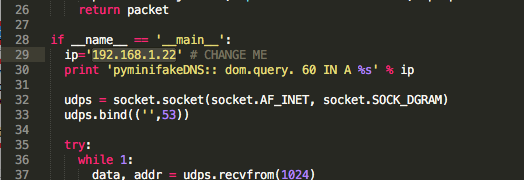
Next step is to pen up Command Prompt (Windows) or Terminal (Mac) and run switchdns.py
Running SwitchDNS on Windows:
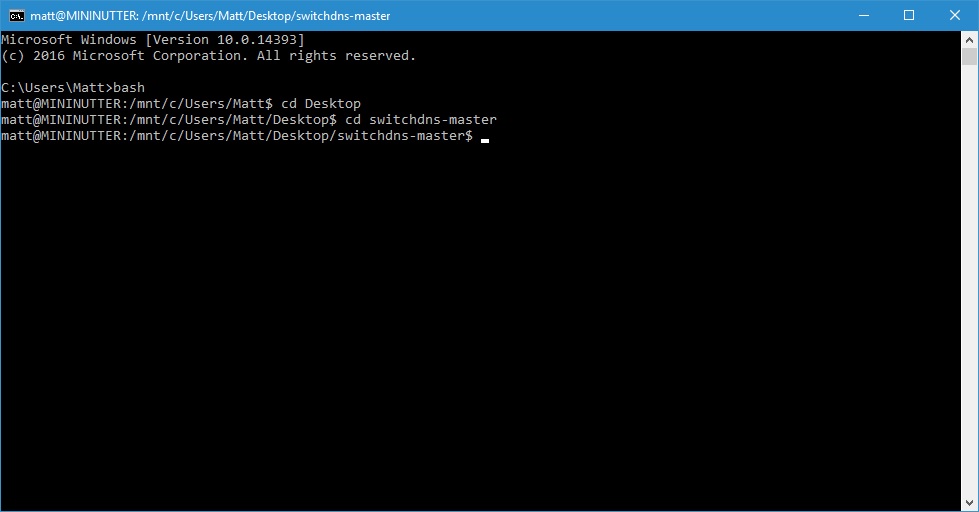
Open Command Prompt from the Start Menu and type bash
Then type cd Desktop, presuming you unzipped the downloaded python script to a folder called switchdns-master on your desktop type cd switchdns-master
You should now be working in the switchdns-master folder on your desktop:
Type sudo python switchdns.py to run the script:
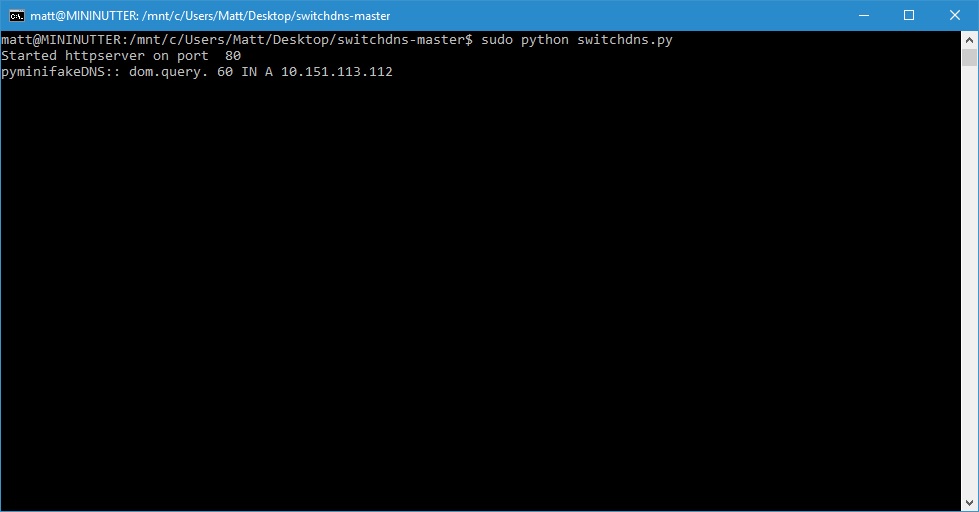
The script should now be running so continue to the updating Nintendo Switch network settings part of this tutorial.
Running SwitchDNS on Mac:
For Mac, assuming you unzipped it on the Desktop the commands you would put in Terminal are like so:
Example below:
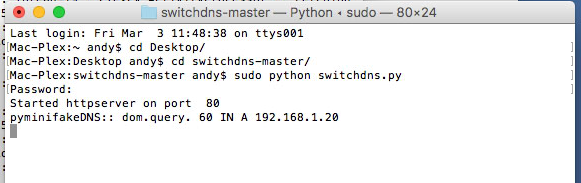
It is now running and you are ready for the final stage.
Updating Nintendo Switch Network Settings
The next stage involves updating your Nintendo Switch to use the new (fake) DNS server your PC is broadcasting.
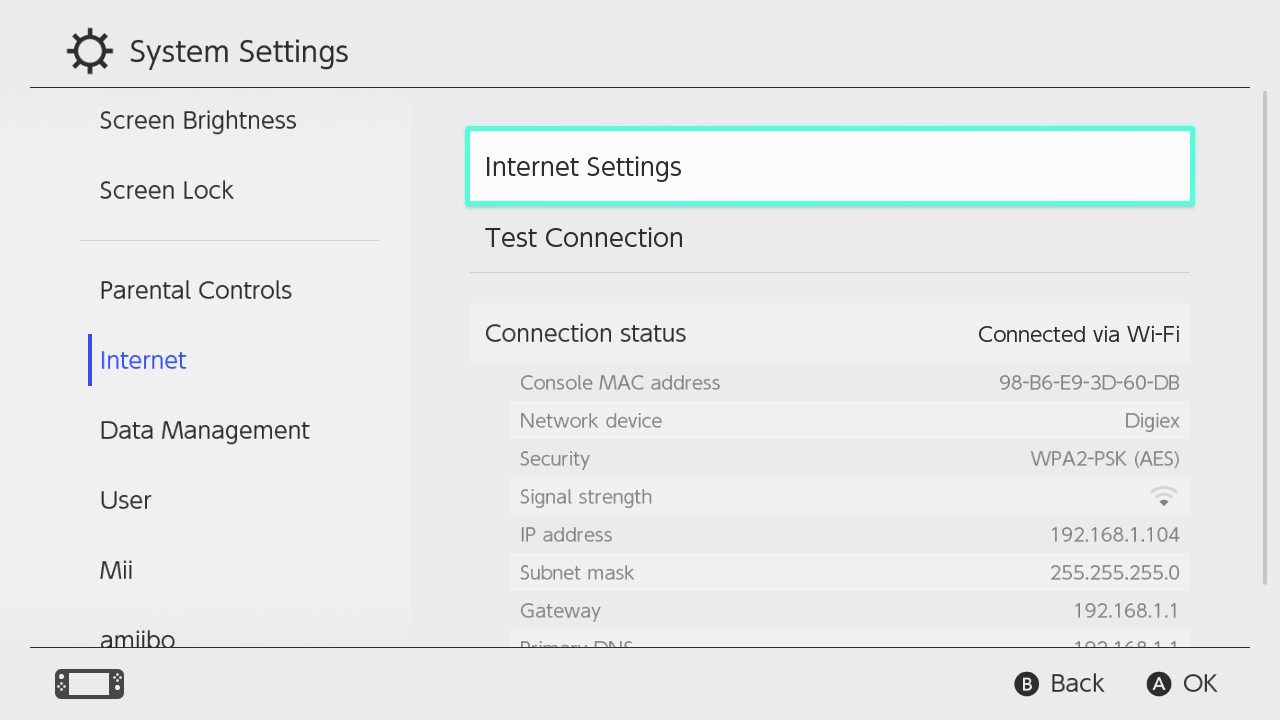
Boot up your Nintendo Switch and open the Settings and scroll down to Internet, then select Internet Settings like so:
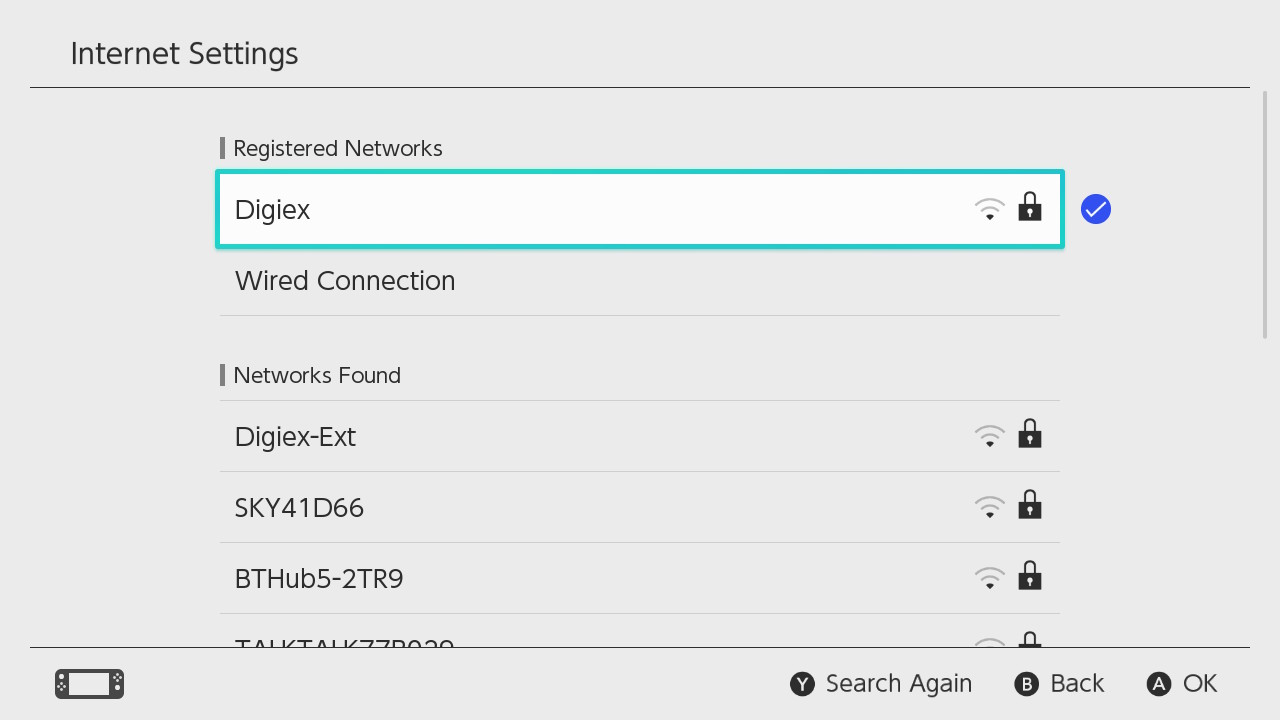
Next, select your existing network:
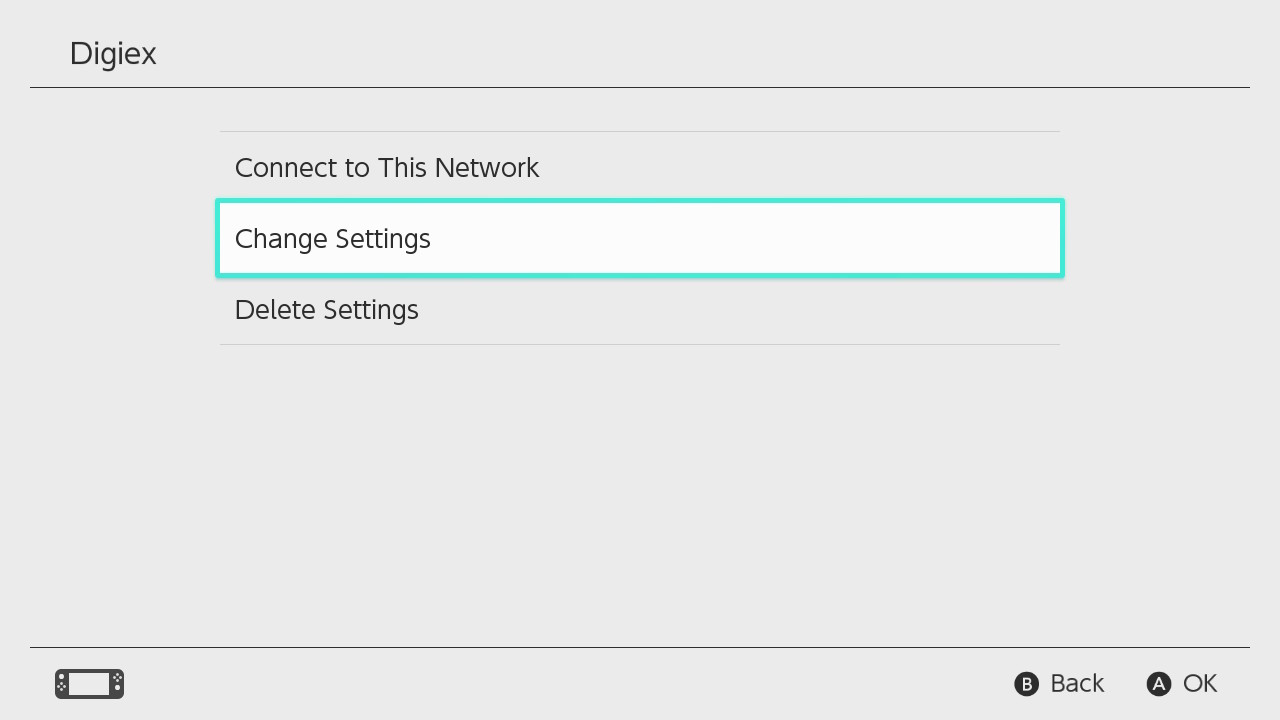
On the next page, click 'Change Settings':
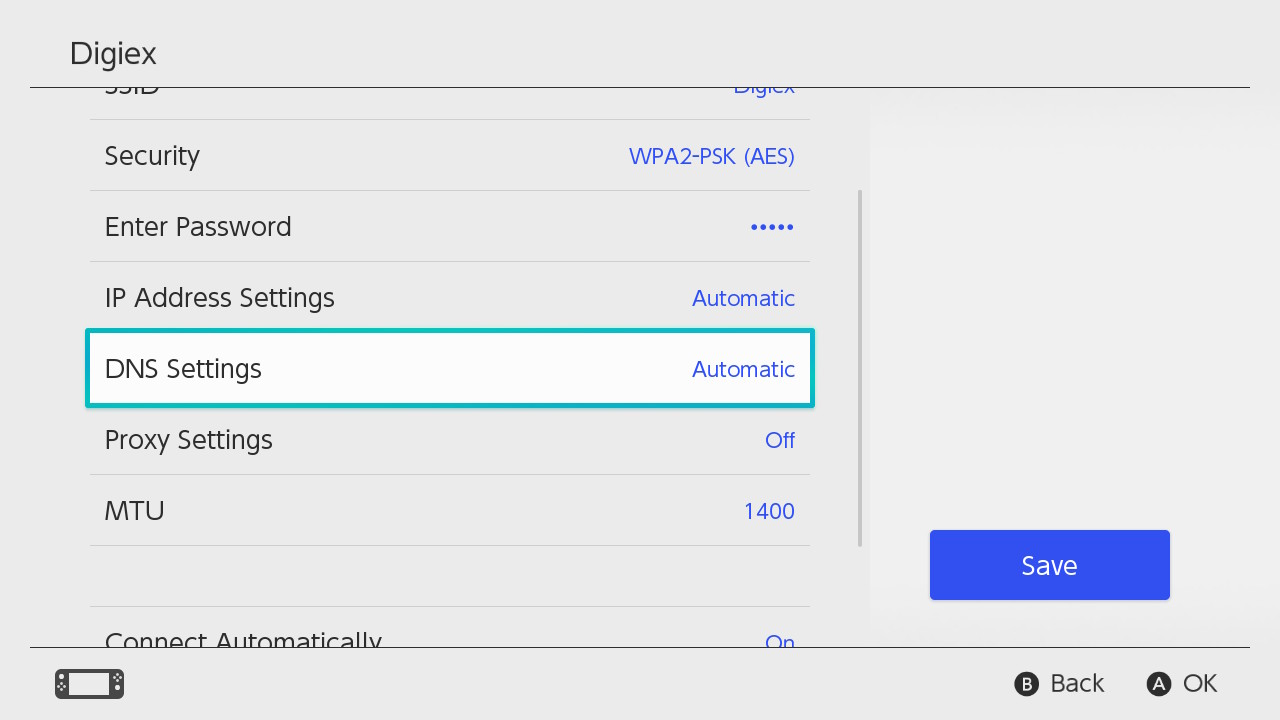
Scroll down to DNS Settings and click:
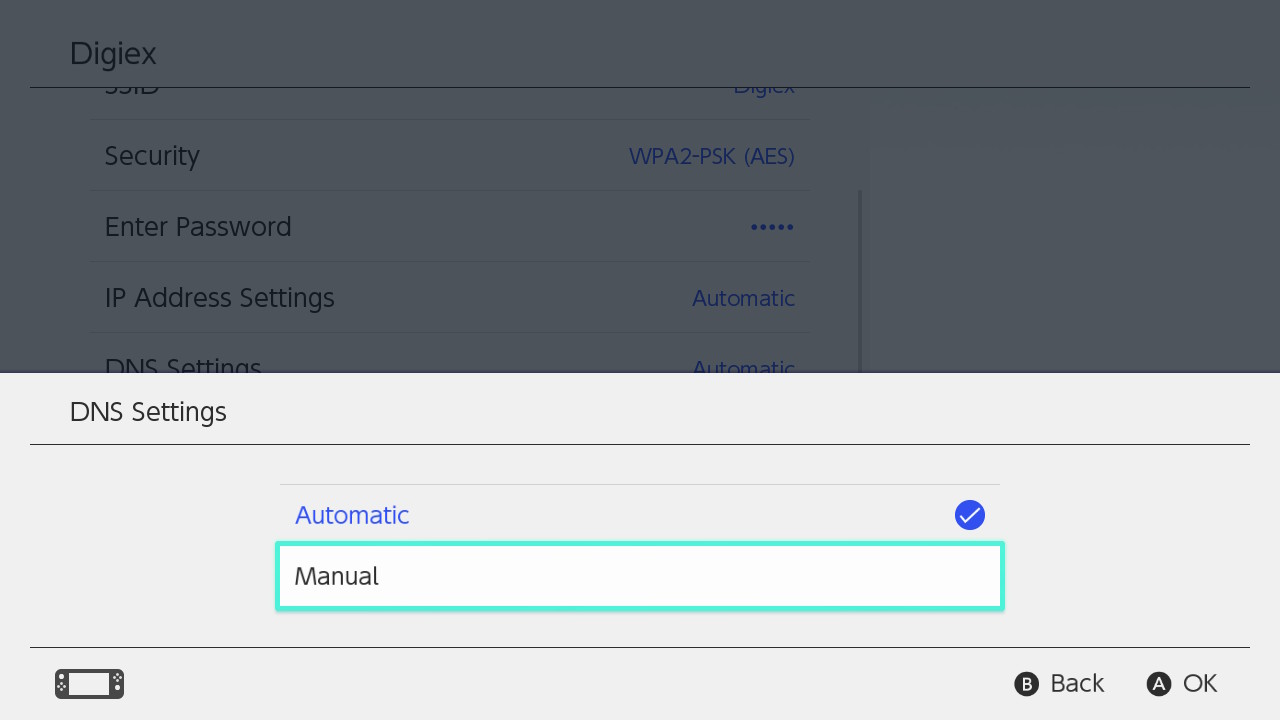
Then select Manual:
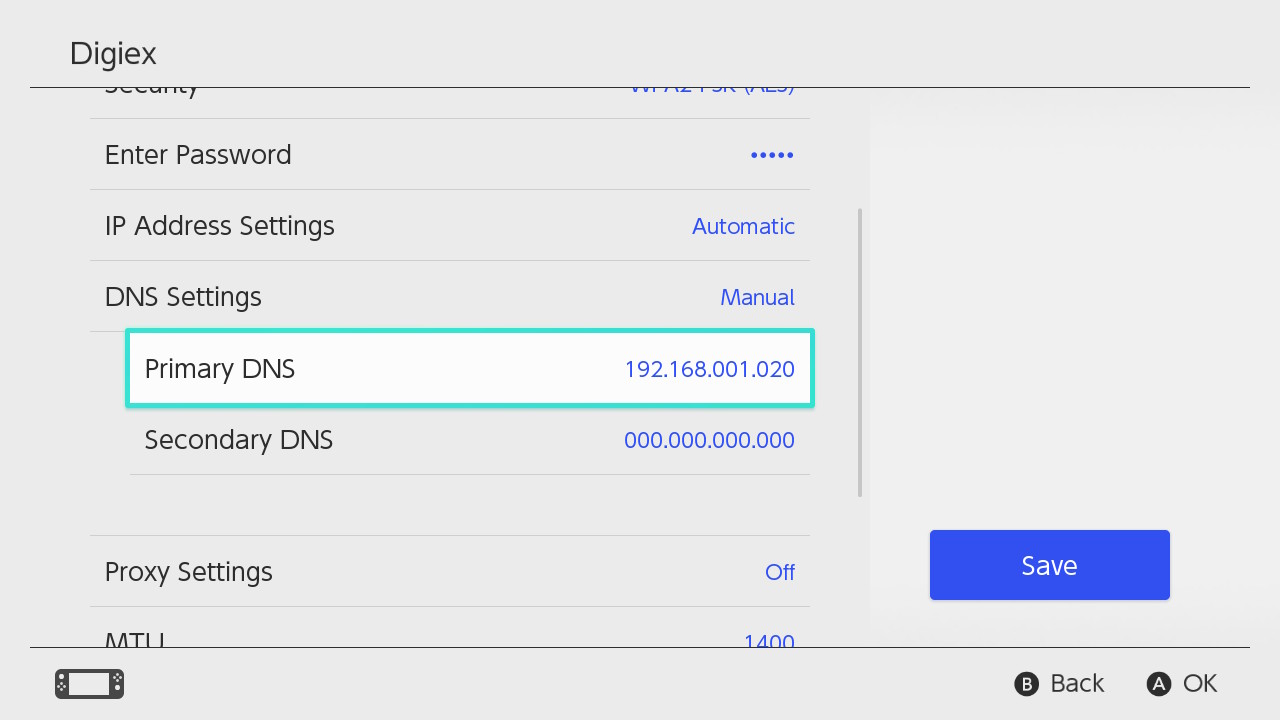
Some new options appear, you need to select 'Primary DNS':
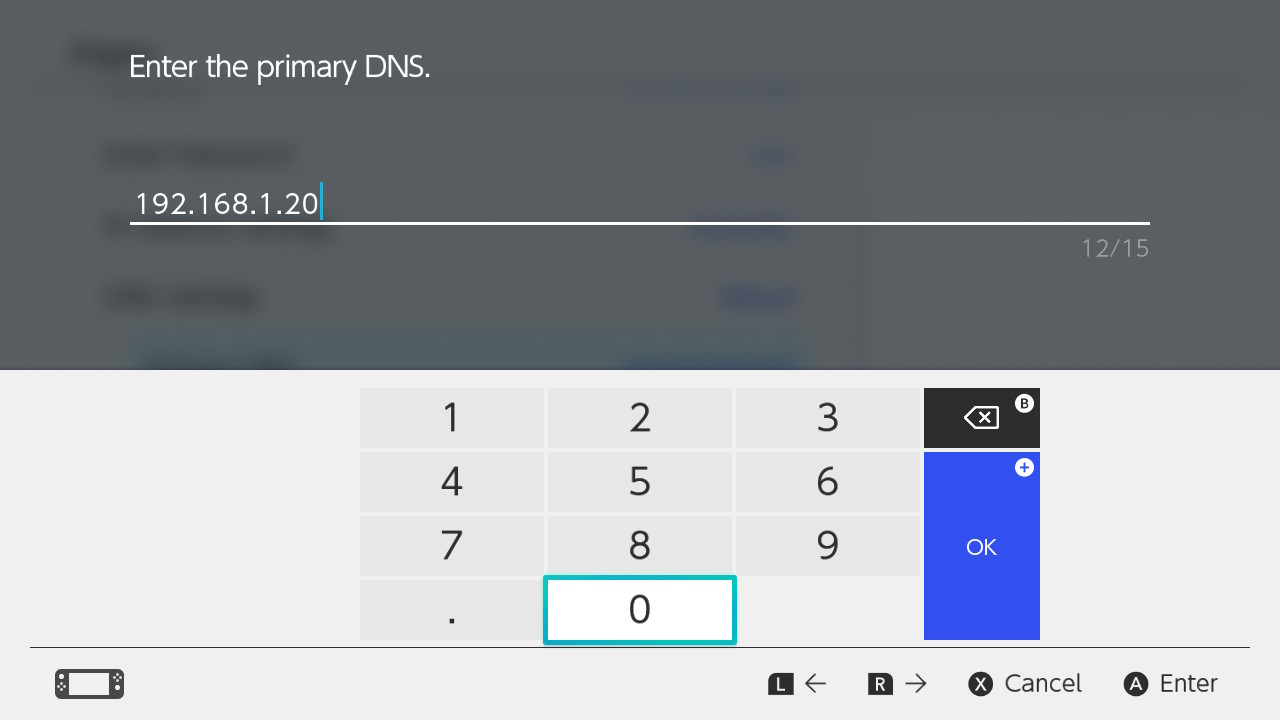
Next, you need to enter your PC's IP Address (the one hosting SwitchDNS):
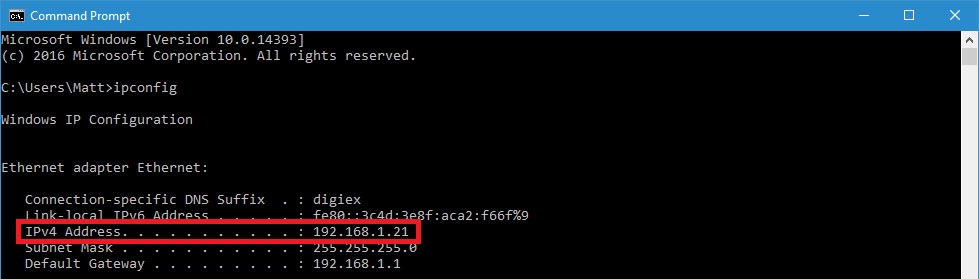
To find your IP address out on Windows simply type ipconfig in a Command Prompt:
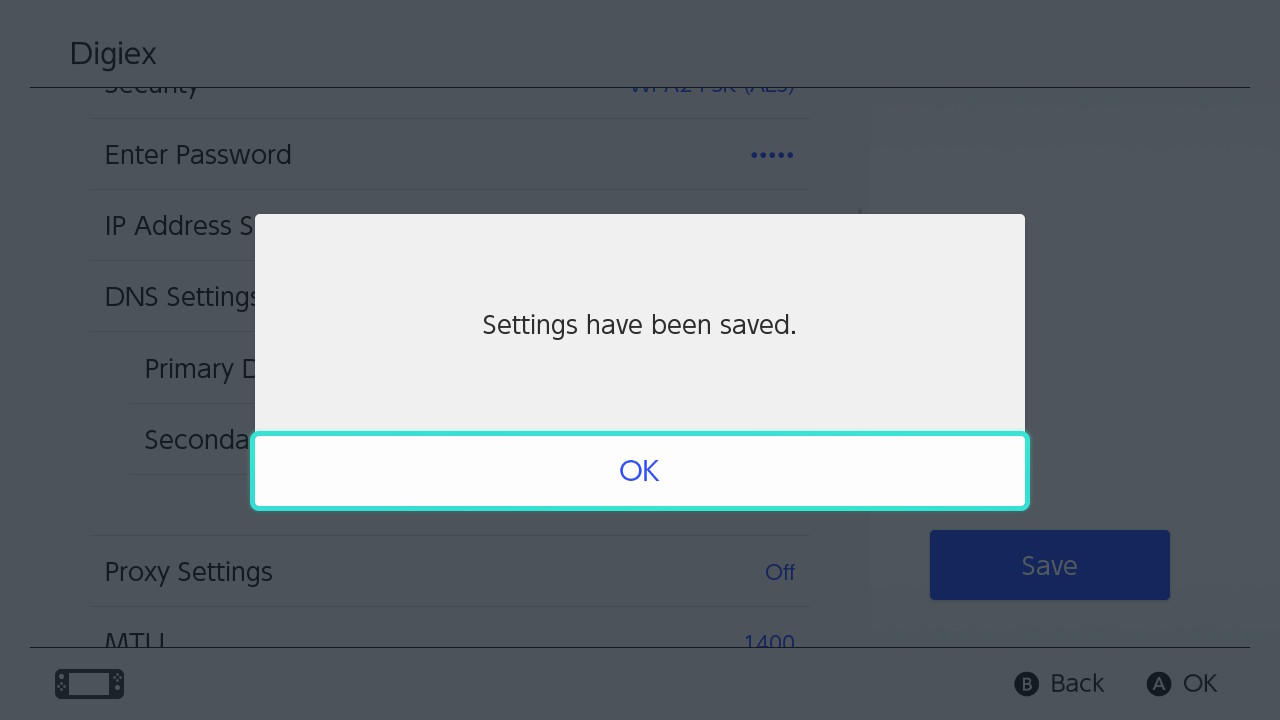
Once done, click Save and you will get the pop up below:
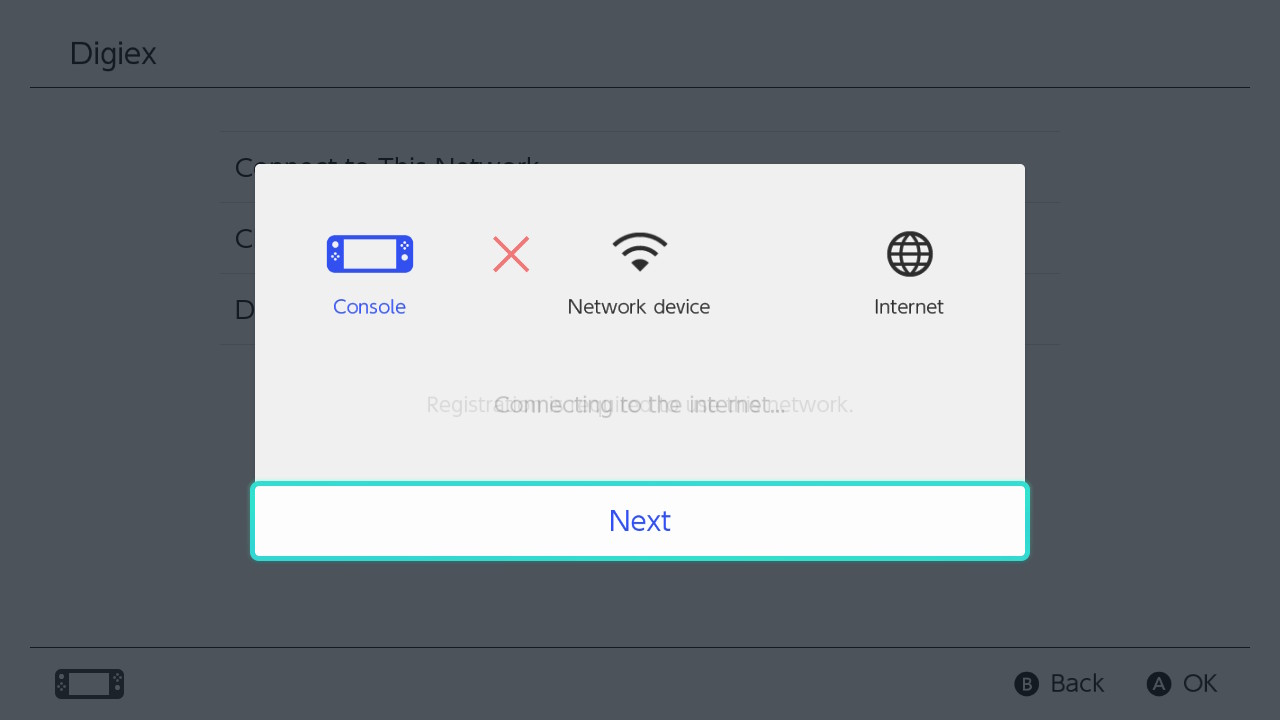
Next up, press 'Connect to This Network' and the Nintendo Switch will pop up and test the connection. All going well, it will change from 'Connecting to Network' to 'Network requires registration' and it will load up the web browser.
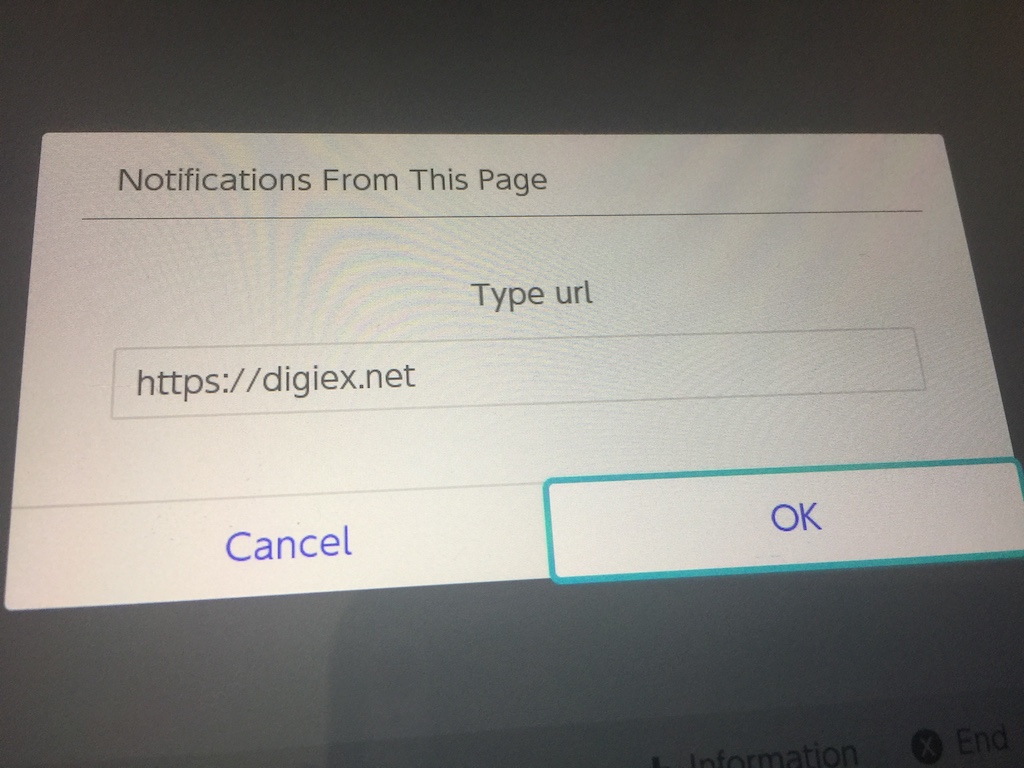
All going well, you will see the below pop up asking for which Web Address you want to browse:
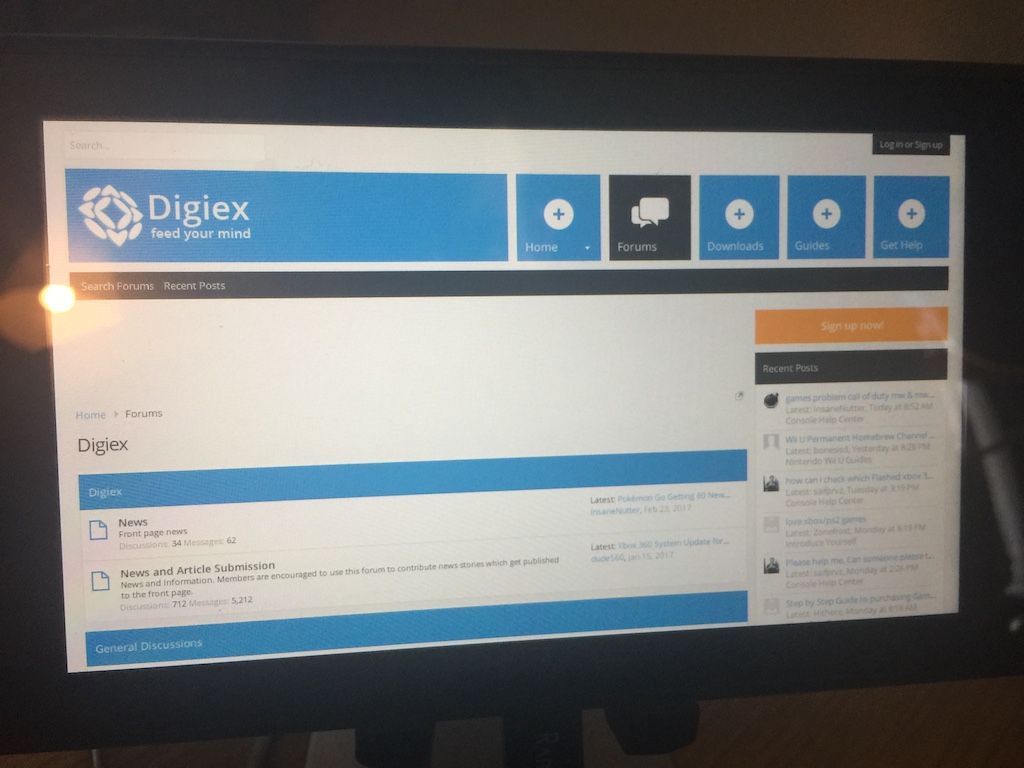
Once you click ok, the Web Browser will load your website and you are all set.
Right now its limited to basic web browsing. However there is option down the line that now the Web Browser has been exposed that similar hacks to what is seen on the Nintendo Wii U could be in the pipe line as browser exploits are found. The Browser identifies itself as a WebKit Engine (same engine used to power Safari/Chrome on PC and Wii U / PS4 browsers).
Hope this guides helps anyone looking to gain access to the Web Browser. Any questions please just pop them below and we will do our best to help.
The Nintendo Switch launches without a Web Browser; or so we thought. It turns out there is one built into the console which is used for when logging into public hotspots (which require signing into via a Webpage). You can use this to insert custom web pages and in the case of the SwitchDNS tool; allows you to enter any URL you wish to go to.
Warning; you will need some technical knowledge as you will be downloading a python script and running it on your PC and redirecting the DNS queries from your Switch to your PC.
We wish to give credit to the developer parrotgeek1 who made this possible and freely published his code on GitHub.
Downloading SwitchDNS
Firstly, you will need to Download SwitchDNS which can be done at the following URL:
Download SwitchDNS for Nintendo Switch
Next steps involves installing Python or Bash (Different for Windows vs Mac):
Windows Users:
Windows users will need to be running Windows 10 and have Bash (Ubuntu Subsystem) for Windows 10 installed. This will only work on 64bit versions of Windows 10.
To set this up you need to first follow this tutorial here: Install Bash (Ubuntu Linux) On Windows 10 then come back here once finished and continue as normal.
Python will then already be setup for Windows users who have bash for Windows 10 installed, Mac users will need to install Python as described below.
Mac Users:
The easiest way to get Python on Mac is to use Homebrew (the missing package manager for Mac).
Once Homebrew is installed, in the Terminal you just need to type:
Code:
brew install pythonConfiguring the Application (Any OS):
Once downloaded, you will need to open 'dns.py' in your favourite text editor (or Notepad if you don't have one) and add your PC's IP address on line 29 like so:
Next step is to pen up Command Prompt (Windows) or Terminal (Mac) and run switchdns.py
Running SwitchDNS on Windows:
Open Command Prompt from the Start Menu and type bash
Then type cd Desktop, presuming you unzipped the downloaded python script to a folder called switchdns-master on your desktop type cd switchdns-master
You should now be working in the switchdns-master folder on your desktop:
Type sudo python switchdns.py to run the script:
The script should now be running so continue to the updating Nintendo Switch network settings part of this tutorial.
Running SwitchDNS on Mac:
For Mac, assuming you unzipped it on the Desktop the commands you would put in Terminal are like so:
Code:
cd Desktop/
cd switchdns-master/
sudo python switchdns.py
Example below:
It is now running and you are ready for the final stage.
Updating Nintendo Switch Network Settings
The next stage involves updating your Nintendo Switch to use the new (fake) DNS server your PC is broadcasting.
Boot up your Nintendo Switch and open the Settings and scroll down to Internet, then select Internet Settings like so:
Next, select your existing network:
On the next page, click 'Change Settings':
Scroll down to DNS Settings and click:
Then select Manual:
Some new options appear, you need to select 'Primary DNS':
Next, you need to enter your PC's IP Address (the one hosting SwitchDNS):
To find your IP address out on Windows simply type ipconfig in a Command Prompt:
Once done, click Save and you will get the pop up below:
Next up, press 'Connect to This Network' and the Nintendo Switch will pop up and test the connection. All going well, it will change from 'Connecting to Network' to 'Network requires registration' and it will load up the web browser.
All going well, you will see the below pop up asking for which Web Address you want to browse:
Once you click ok, the Web Browser will load your website and you are all set.
Right now its limited to basic web browsing. However there is option down the line that now the Web Browser has been exposed that similar hacks to what is seen on the Nintendo Wii U could be in the pipe line as browser exploits are found. The Browser identifies itself as a WebKit Engine (same engine used to power Safari/Chrome on PC and Wii U / PS4 browsers).
Hope this guides helps anyone looking to gain access to the Web Browser. Any questions please just pop them below and we will do our best to help.
Attachments
Last edited:





