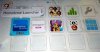
InsaneNutter
Resident Nutter
Note this tutorial is now outdated, please follow this much easier tutorial which requires no networking knowledge or using Command Prompt: Wii U Permanent Homebrew Channel / Launcher Exploit Tutorial [Haxchi 2.0 Wii U Hack]
Below - a video showing my Wii U booting from been totally powered off, then loading the Homebrew Launcher directly from the Home Screen (On the System Nand) without any previous hacked applied. This is all thanks to a new hack called Haxchi.
What you need:
1. A EUR or USA Wii U on firmware 5.5.1, JPN Wii U’s are unfortunately not supported at this time.
2. You must have previously followed my Easy Nintendo Wii U Homebrew Channel Hack Guide or be capable of launching the Homebrew Launcher from the Wii U’s web browser.
3. Own one of the following DS Virtual Console games on the Wii U:
EUR:
USA:
If you do not own one of the above games you will need to purchase the game of your choice form the Nintendo Eshop. It doesn’t matter which one, each game can be exploited, just be aware you will no longer be able to play the game you choose after following this tutorial.
Installing the Homebrew Launcher Permanently to the Wii U:
Preparing the Wii U:
To install the Homebrew Launcher Permanently to your Wii U we are going to use the homebrew app CFW Booter to load a modified firmware image, this loads a WUP server in the background on your Wii U. The WUP server will allow us to interface with the Wii U over your home network, allowing us to make the modifications required to the DS Virtual Console game.
To make this as easy as possible for you I have included all the files and firmware image required for this in the following download: Wii U Homebrew Launcher Permanent Files.
All you need to do is download the above files and extract them to the root of the Wii U’s SD card, like so:
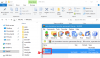
Once you have done this place the SD Card back in your Wii U
Preparing your PC:
You need Python 2.7.12 installed on your PC, not Python 3.
Download and install Python 2.7.12 from the Python Website
When installing Python insure this option is ticked “add Python.exe to path” if you don’t do this you will have problems following this tutorial later.
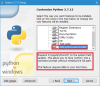
Once you have Python installed download this: Wii U Homebrew Launcher PC package I have put together and extract it to the root of your C:\ drive
The end result should be you have the following files in C:\wiiu-pc
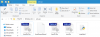
You now need to download the hacked rom for the Nintendo DS game you will be exploiting
I would suggest downloading the latest version of the hacked rom from the Haxchi Github, you want the normal zip, not the CFW one. Mirrors are provided below, however checkout the Github for the latest version.
Once downloaded rename the zip file to rom and copy it to C:\wiiu-pc (do not unzip the rom)
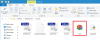
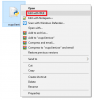
Still in C:\wiiu-pc right click on “wupclient” and click “Edit with IDLE”:
Scroll down and edit the 192.168.1.67 ip address to the IP address your Wii U has on your network:
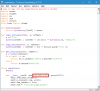
My Wii U's IP is: 192.168.1.67:
When done go to File > Save
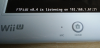
If you don’t know your Wii U’s IP address the easiest way to findout would be to load the FTPiiU Homebrew App from the Homebrew Launcher, it will show you the Wii U’s IP address when it loads up:
Installing The Homebrew Launcher:
Now you have completed all the preparation it’s time to make the Homebrew Launcher a prominent fixture on your Wii U’s Home Screen.
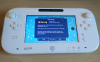
Launch the Homebrew Launcher as usual though the web browser exploit (you should have already followed my Nintendo Wii U Homebrew Channel Hack Guide for this as i mentioned earlier), then load the CFW Loader Homebrew Application:
Let it go through the loading process, don't worry about your screen going red, just let the process happen:
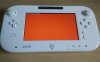
The Wii U should end up back at the Home Screen, the difference is you now have a WUP server running in the background.
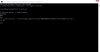
On your PC open up a Command Prompt window (search in the Start Menu for Command Prompt) and type cd C:\wiiu-pc
This will change you to the C:\wiiu-pc folder where we coped all the files required earlier.
Now type: python -i wupclient.py

We're now ready to upload the hacked rom.zip you downloaded earlier, please be aware the command to upload the rom.zip will differ depending on install location and game.
If you are unsure on the Wii U go to System Settings > Data Management > Copy / Move Delete Data > your DS game will either be on the System Memory or a USB Storage Device if you have one.
USB Command:
w.up("rom.zip", "/vol/storage_usb01/usr/title/00050000/*YOUR_GAME_TITLE_ID*/content/0010/rom.zip")
System Memory (Nand) Command:
w.up("rom.zip", "/vol/storage_mlc01/usr/title/00050000/*YOUR_GAME_TITLE_ID*/content/0010/rom.zip")
Replace *YOUR_GAME_TITLE_ID* with the ID that corresponds to your game and region:
I had the PAL Brain Training game installed on a USB memory stick, so for me the command I typed was:
w.up("rom.zip", "/vol/storage_usb01/usr/title/00050000/10179C00/content/0010/rom.zip")
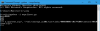
That’s it the hack is now installed.
You must however power the Wii U off, then disconnect the power cable for a couple of seconds. If you don’t disconnect the power cable the Wii U will not boot up again until you do.
Power the Wii U back on and it should boot to the Home Screen, load your DS game up and instead of the DS game loading you should get the Homebrew Launcher.
Note: Once you have loaded the Homebrew Launcher from the DS game if you exit out of it without powering the Wii U off you can access it again from the Mii Maker. If you load the DS game to get back to the Homebrew Launcher you will crash the Wii U.
Congratulations you now have a 100% reliable way to launch Homebrew!
Finishing Touches:
Once you have verified your DS game loads the Homebrew Launcher the final thing you can do is purely cosmetic, that is changing the icons and launch music of the DS game used to launch the Homebrew Launcher. This is totally optional and not required.
If you wish to change the icons and boot up music you need to do the following:
Depending on your game's install location you will use these commands to upload the files:
USB Commands:
w.up("bootTvTex.tga", "/vol/storage_usb01/usr/title/00050000/*YOUR_GAME_TITLE_ID*/meta/bootTvTex.tga")
w.up("bootDrcTex.tga", "/vol/storage_usb01/usr/title/00050000/*YOUR_GAME_TITLE_ID*/meta/bootDrcTex.tga")
w.up("iconTex.tga", "/vol/storage_usb01/usr/title/00050000/*YOUR_GAME_TITLE_ID*/meta/iconTex.tga")
w.up("bootSound.btsnd", "/vol/storage_usb01/usr/title/00050000/*YOUR_GAME_TITLE_ID*/meta/bootSound.btsnd")
System Memory (Nand) Commands:
w.up("bootTvTex.tga", "/vol/storage_mlc01/usr/title/00050000/*YOUR_GAME_TITLE_ID*/meta/bootTvTex.tga")
w.up("bootDrcTex.tga", "/vol/storage_mlc01/usr/title/00050000/*YOUR_GAME_TITLE_ID*/meta/bootDrcTex.tga")
w.up("iconTex.tga", "/vol/storage_mlc01/usr/title/00050000/*YOUR_GAME_TITLE_ID*/meta/iconTex.tga")
w.up("bootSound.btsnd", "/vol/storage_mlc01/usr/title/00050000/*YOUR_GAME_TITLE_ID*/meta/bootSound.btsnd")
Once again replace *YOUR_GAME_TITLE_ID* in these commands with the ID that corresponds to your game and region:
The final item to modify is the meta.xml this is where the text description / app name is stored, so we can rename your DS game to Homebrew Launcher.
You will need to download the meta.xml from your Wii U, again the commands will differ depending where on the Wii U the DS game is stored.
USB Command:
w.dl("/vol/storage_usb01/usr/title/00050000/*YOUR_GAME_TITLE_ID*/meta/meta.xml")
System Memory (Nand) Commands:
w.dl("/vol/storage_mlc01/usr/title/00050000/*YOUR_GAME_TITLE_ID*/meta/meta.xml")
Open the meta.xml you just downloaded, it will be located in C:\wiiu-pc (Notepad++ works well for editing XML files on Windows)
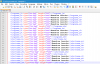
Edit the longname and shortname as shown below, you can do this just for the language your Wii U is set to or all languages the game has a description for if desired:
Then upload this back to the Wii U:
USB Command:
w.up("meta.xml", "/vol/storage_usb01/usr/title/00050000/*YOUR_GAME_TITLE_ID*/meta/meta.xml")
System Memory (Nand) Commands:
w.up("meta.xml", "/vol/storage_mlc01/usr/title/00050000/*YOUR_GAME_TITLE_ID*/meta/meta.xml")
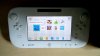
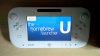
That's it you have transformed your DS game in to a fully fledged Homebrew Launcher, complete with a nice icon, banner and the classic homebrew launcher music from the original Wii.
Some people don't agree with providing compiled binaries for the Wii U, links to the relevant Github pages have been provided for more technical people to compile themselves where appropriate. All we try to do at Digiex is make our tutorials as easy as possible for people of all skill levels to follow.
This tutorial will teach you how to install a permanent Homebrew Channel icon on your 5.5.1 Wii U. The end result will be you can load the Homebrew Launcher from the Wii U’s home screen, just like any other app or game. The Homebrew Launcher will load first time, every time, unlike the unreliable web browser exploit we have had to use until now.Below - a video showing my Wii U booting from been totally powered off, then loading the Homebrew Launcher directly from the Home Screen (On the System Nand) without any previous hacked applied. This is all thanks to a new hack called Haxchi.
What you need:
1. A EUR or USA Wii U on firmware 5.5.1, JPN Wii U’s are unfortunately not supported at this time.
2. You must have previously followed my Easy Nintendo Wii U Homebrew Channel Hack Guide or be capable of launching the Homebrew Launcher from the Wii U’s web browser.
3. Own one of the following DS Virtual Console games on the Wii U:
EUR:
- Brain Training
- Kirby Mouse Attack
- WarioWare: Touched
- Yoshi's Island DS
USA:
- Brain Age
- Kirby Squeak Squad
- WarioWare: Touched
- Yoshi's Island DS
If you do not own one of the above games you will need to purchase the game of your choice form the Nintendo Eshop. It doesn’t matter which one, each game can be exploited, just be aware you will no longer be able to play the game you choose after following this tutorial.
Installing the Homebrew Launcher Permanently to the Wii U:
Preparing the Wii U:
To install the Homebrew Launcher Permanently to your Wii U we are going to use the homebrew app CFW Booter to load a modified firmware image, this loads a WUP server in the background on your Wii U. The WUP server will allow us to interface with the Wii U over your home network, allowing us to make the modifications required to the DS Virtual Console game.
To make this as easy as possible for you I have included all the files and firmware image required for this in the following download: Wii U Homebrew Launcher Permanent Files.
All you need to do is download the above files and extract them to the root of the Wii U’s SD card, like so:
Once you have done this place the SD Card back in your Wii U
Preparing your PC:
You need Python 2.7.12 installed on your PC, not Python 3.
Download and install Python 2.7.12 from the Python Website
When installing Python insure this option is ticked “add Python.exe to path” if you don’t do this you will have problems following this tutorial later.
Once you have Python installed download this: Wii U Homebrew Launcher PC package I have put together and extract it to the root of your C:\ drive
The end result should be you have the following files in C:\wiiu-pc
You now need to download the hacked rom for the Nintendo DS game you will be exploiting
I would suggest downloading the latest version of the hacked rom from the Haxchi Github, you want the normal zip, not the CFW one. Mirrors are provided below, however checkout the Github for the latest version.
Once downloaded rename the zip file to rom and copy it to C:\wiiu-pc (do not unzip the rom)
Still in C:\wiiu-pc right click on “wupclient” and click “Edit with IDLE”:
Scroll down and edit the 192.168.1.67 ip address to the IP address your Wii U has on your network:
My Wii U's IP is: 192.168.1.67:
When done go to File > Save
If you don’t know your Wii U’s IP address the easiest way to findout would be to load the FTPiiU Homebrew App from the Homebrew Launcher, it will show you the Wii U’s IP address when it loads up:
Installing The Homebrew Launcher:
Now you have completed all the preparation it’s time to make the Homebrew Launcher a prominent fixture on your Wii U’s Home Screen.
Launch the Homebrew Launcher as usual though the web browser exploit (you should have already followed my Nintendo Wii U Homebrew Channel Hack Guide for this as i mentioned earlier), then load the CFW Loader Homebrew Application:
Let it go through the loading process, don't worry about your screen going red, just let the process happen:
The Wii U should end up back at the Home Screen, the difference is you now have a WUP server running in the background.
On your PC open up a Command Prompt window (search in the Start Menu for Command Prompt) and type cd C:\wiiu-pc
This will change you to the C:\wiiu-pc folder where we coped all the files required earlier.
Now type: python -i wupclient.py
We're now ready to upload the hacked rom.zip you downloaded earlier, please be aware the command to upload the rom.zip will differ depending on install location and game.
If you are unsure on the Wii U go to System Settings > Data Management > Copy / Move Delete Data > your DS game will either be on the System Memory or a USB Storage Device if you have one.
USB Command:
w.up("rom.zip", "/vol/storage_usb01/usr/title/00050000/*YOUR_GAME_TITLE_ID*/content/0010/rom.zip")
System Memory (Nand) Command:
w.up("rom.zip", "/vol/storage_mlc01/usr/title/00050000/*YOUR_GAME_TITLE_ID*/content/0010/rom.zip")
Replace *YOUR_GAME_TITLE_ID* with the ID that corresponds to your game and region:
- 10179B00 - US Brain Age
- 10179C00 - PAL Brain Training
- 10198A00 - US Yoshi's Island DS
- 10198A00 - PAL Yoshi's Island DS
- 101A5600 - US Kirby Squeak Squad
- 101A5700 - PAL Kirby Mouse Attack
I had the PAL Brain Training game installed on a USB memory stick, so for me the command I typed was:
w.up("rom.zip", "/vol/storage_usb01/usr/title/00050000/10179C00/content/0010/rom.zip")
That’s it the hack is now installed.
You must however power the Wii U off, then disconnect the power cable for a couple of seconds. If you don’t disconnect the power cable the Wii U will not boot up again until you do.
Power the Wii U back on and it should boot to the Home Screen, load your DS game up and instead of the DS game loading you should get the Homebrew Launcher.
Note: Once you have loaded the Homebrew Launcher from the DS game if you exit out of it without powering the Wii U off you can access it again from the Mii Maker. If you load the DS game to get back to the Homebrew Launcher you will crash the Wii U.
Congratulations you now have a 100% reliable way to launch Homebrew!
Finishing Touches:
Once you have verified your DS game loads the Homebrew Launcher the final thing you can do is purely cosmetic, that is changing the icons and launch music of the DS game used to launch the Homebrew Launcher. This is totally optional and not required.
If you wish to change the icons and boot up music you need to do the following:
- Load the CFW Booter again from the Homebrew Launcher and wait until the Wii U is on the Home Screen again.
- On your PC open a Command Prompt and type cd C:\wiiu-pc as we did before
- Then python -i wupclient.py as you did before.
- Now we are going to send various files to the Wii U, these should already be in the C:\wiiu-pc folder you have.
Depending on your game's install location you will use these commands to upload the files:
USB Commands:
w.up("bootTvTex.tga", "/vol/storage_usb01/usr/title/00050000/*YOUR_GAME_TITLE_ID*/meta/bootTvTex.tga")
w.up("bootDrcTex.tga", "/vol/storage_usb01/usr/title/00050000/*YOUR_GAME_TITLE_ID*/meta/bootDrcTex.tga")
w.up("iconTex.tga", "/vol/storage_usb01/usr/title/00050000/*YOUR_GAME_TITLE_ID*/meta/iconTex.tga")
w.up("bootSound.btsnd", "/vol/storage_usb01/usr/title/00050000/*YOUR_GAME_TITLE_ID*/meta/bootSound.btsnd")
System Memory (Nand) Commands:
w.up("bootTvTex.tga", "/vol/storage_mlc01/usr/title/00050000/*YOUR_GAME_TITLE_ID*/meta/bootTvTex.tga")
w.up("bootDrcTex.tga", "/vol/storage_mlc01/usr/title/00050000/*YOUR_GAME_TITLE_ID*/meta/bootDrcTex.tga")
w.up("iconTex.tga", "/vol/storage_mlc01/usr/title/00050000/*YOUR_GAME_TITLE_ID*/meta/iconTex.tga")
w.up("bootSound.btsnd", "/vol/storage_mlc01/usr/title/00050000/*YOUR_GAME_TITLE_ID*/meta/bootSound.btsnd")
Once again replace *YOUR_GAME_TITLE_ID* in these commands with the ID that corresponds to your game and region:
- 10179B00 - US Brain Age
- 10179C00 - PAL Brain Training
- 10198A00 - US Yoshi's Island DS
- 10198A00 - PAL Yoshi's Island DS
- 101A5600 - US Kirby Squeak Squad
- 101A5700 - PAL Kirby Mouse Attack
The final item to modify is the meta.xml this is where the text description / app name is stored, so we can rename your DS game to Homebrew Launcher.
You will need to download the meta.xml from your Wii U, again the commands will differ depending where on the Wii U the DS game is stored.
USB Command:
w.dl("/vol/storage_usb01/usr/title/00050000/*YOUR_GAME_TITLE_ID*/meta/meta.xml")
System Memory (Nand) Commands:
w.dl("/vol/storage_mlc01/usr/title/00050000/*YOUR_GAME_TITLE_ID*/meta/meta.xml")
Open the meta.xml you just downloaded, it will be located in C:\wiiu-pc (Notepad++ works well for editing XML files on Windows)
Edit the longname and shortname as shown below, you can do this just for the language your Wii U is set to or all languages the game has a description for if desired:
Then upload this back to the Wii U:
USB Command:
w.up("meta.xml", "/vol/storage_usb01/usr/title/00050000/*YOUR_GAME_TITLE_ID*/meta/meta.xml")
System Memory (Nand) Commands:
w.up("meta.xml", "/vol/storage_mlc01/usr/title/00050000/*YOUR_GAME_TITLE_ID*/meta/meta.xml")
That's it you have transformed your DS game in to a fully fledged Homebrew Launcher, complete with a nice icon, banner and the classic homebrew launcher music from the original Wii.
- This tutorial uses iosuhax and haxchi worked on by smea, plutoo, yellows8, naehrwert, derrek, FIX94 and dimok.
- The latest WUPClient source code can be found on the Wupserver Github.
- CFW Booter by the WiiUBru team
- Homebrew Launcher by dimok
Some people don't agree with providing compiled binaries for the Wii U, links to the relevant Github pages have been provided for more technical people to compile themselves where appropriate. All we try to do at Digiex is make our tutorials as easy as possible for people of all skill levels to follow.