

Nimrod
Dev Ops
- Joined
- Jun 1, 2007
- Messages
- 1,514
This guide shows you how to setup your NordVPN (or other OpenVPN) provider on your Android TV like the Nvidia Shield TV using a native application which works via the remote.
Some providers already provide a Native TV application, but the majority don't which is really annoying. If you want to use their apps you have to sideload the APK downloaded from an external source and then deal with using a keyboard/mouse to simulate a touch screen interface which isnt exactly ideal on an Android TV / Nvidia Shield TV in a living room where a Remote / Controller tends to be used.
I found this workaround which I use detailed below to provide a native remote friendly interface, while getting all the benefits of the VPN.
If you havent got a provider yet, I strongly recommend NordVPN. If you use the coupon code "2YDeal2017" you can get 2 years service for only $79.99 which is a massive steal. I picked NordVPN because of its zero logging policy, it's Netflix US friendly as well as P2P friendly while operating out of Panama meaning DMCA and Blocking Streams just doesnt happen.
To get started, fire up the Google Play store on your Android TV and look for the app: OpenVPN for Android like so:

It's totally free which is great!
Once installed, it will appear as a native tile on your Android TV Box:
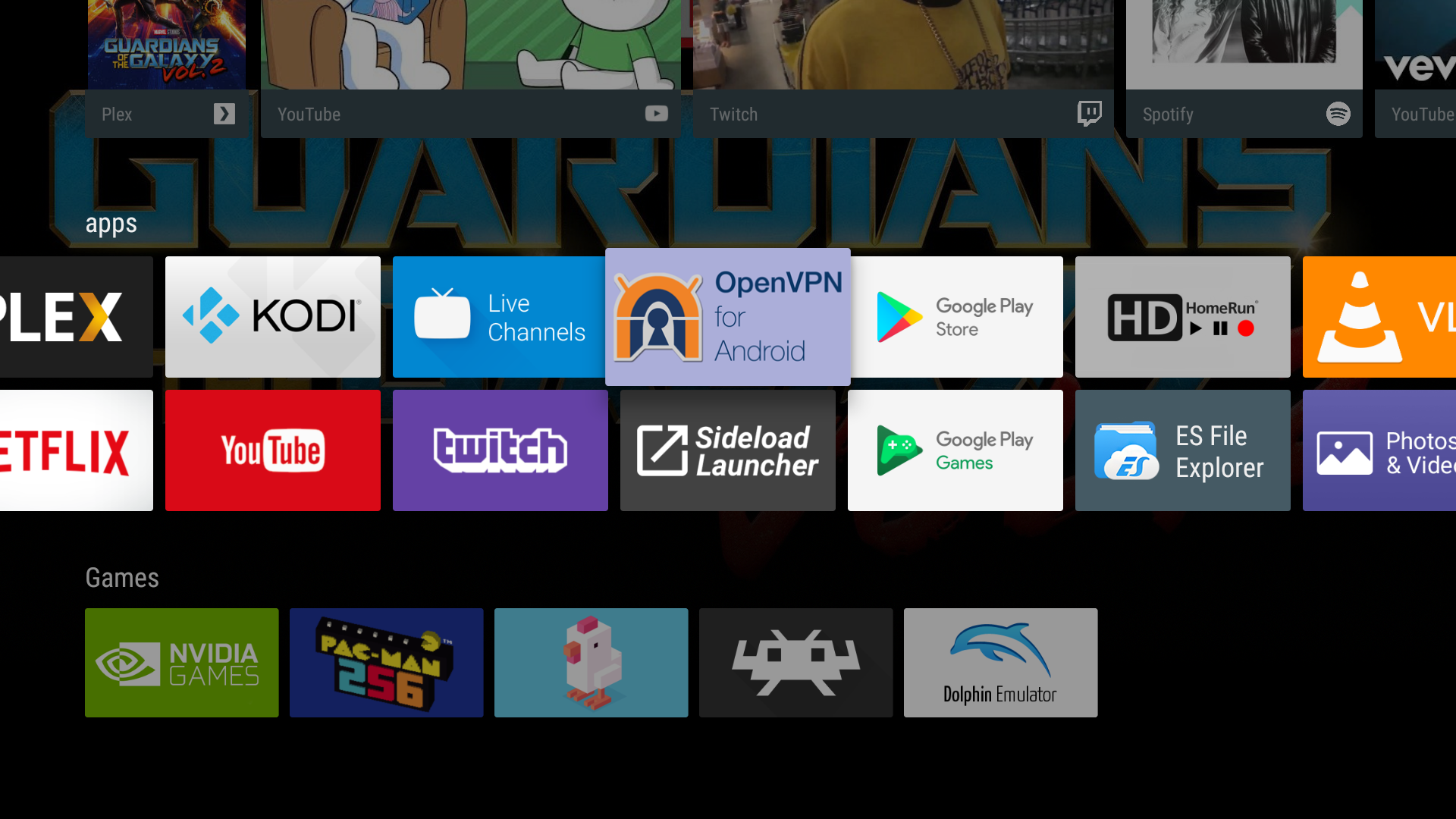
Open it up and then click 'Import' which is highlighted below:

This is where you will need your OpenVPN Configuration Files. Most VPN providers will have these available on their website. If you are using NordVPN then you can download them from:
https://nordvpn.com/ovpn/
Download them, and place them on your Android TV device either by USB Stick, SD Card, External Media or using one of the many file importers available on Android to get it on your native file system.
Once done, navigate to them in the OpenVPN Android TV client and import them by selecting them like so:
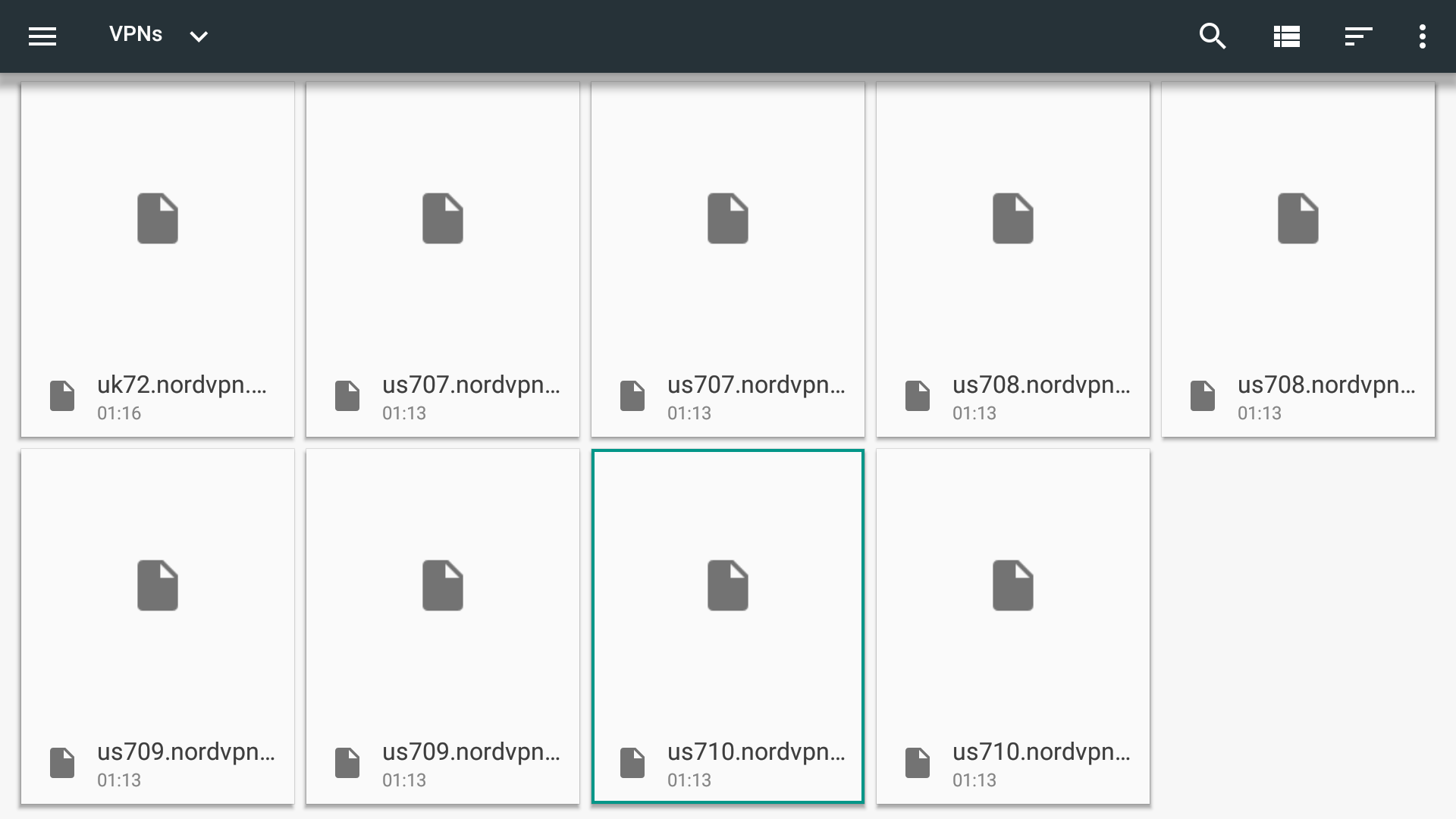
Once imported, you'll need to then insert your Username and Password for your provider; this is as the files you downloaded are generic and not tied to your account. You can do this by selecting the 'Pencil' icon next to your provider on the Main Screen.

And that's all there is to it! You can import as many as you like (so for me, I've put some UK, US and NL ones so I can jump between regions as needed). One other tweak I recommend is once you know it's working, in the settings I'd recommend turning off the 'Open Log on Connection' and that way the App will be kept quite neat and not fire up a load of text you need to close every time it connects.
You are now set to go ahead and enjoy Netflix US or use the many great Kodi plugins without censorship or being blocked by the likes of the Premier League. The best bit about this is once it's setup, its so easy to switch between them all from the comfort of your Remote, it's non-technical to so I've taught all the members of the household how to do it and they no longer struggle. The connections also last the device going to sleep mode and waking back up so you can have the VPN connections permanently enabled if you wish.
Other notes I've found, local connections also still work perfectly, so if you have a network tuner or Plex box, you can direct connect to it via the local network while connected to the VPN, and network shares etc all continue to work. Then if you connect to remote sites or devices, the VPN is then used.
Some providers already provide a Native TV application, but the majority don't which is really annoying. If you want to use their apps you have to sideload the APK downloaded from an external source and then deal with using a keyboard/mouse to simulate a touch screen interface which isnt exactly ideal on an Android TV / Nvidia Shield TV in a living room where a Remote / Controller tends to be used.
I found this workaround which I use detailed below to provide a native remote friendly interface, while getting all the benefits of the VPN.
If you havent got a provider yet, I strongly recommend NordVPN. If you use the coupon code "2YDeal2017" you can get 2 years service for only $79.99 which is a massive steal. I picked NordVPN because of its zero logging policy, it's Netflix US friendly as well as P2P friendly while operating out of Panama meaning DMCA and Blocking Streams just doesnt happen.
To get started, fire up the Google Play store on your Android TV and look for the app: OpenVPN for Android like so:
It's totally free which is great!
Once installed, it will appear as a native tile on your Android TV Box:
Open it up and then click 'Import' which is highlighted below:
This is where you will need your OpenVPN Configuration Files. Most VPN providers will have these available on their website. If you are using NordVPN then you can download them from:
https://nordvpn.com/ovpn/
Download them, and place them on your Android TV device either by USB Stick, SD Card, External Media or using one of the many file importers available on Android to get it on your native file system.
Once done, navigate to them in the OpenVPN Android TV client and import them by selecting them like so:
Once imported, you'll need to then insert your Username and Password for your provider; this is as the files you downloaded are generic and not tied to your account. You can do this by selecting the 'Pencil' icon next to your provider on the Main Screen.
And that's all there is to it! You can import as many as you like (so for me, I've put some UK, US and NL ones so I can jump between regions as needed). One other tweak I recommend is once you know it's working, in the settings I'd recommend turning off the 'Open Log on Connection' and that way the App will be kept quite neat and not fire up a load of text you need to close every time it connects.
You are now set to go ahead and enjoy Netflix US or use the many great Kodi plugins without censorship or being blocked by the likes of the Premier League. The best bit about this is once it's setup, its so easy to switch between them all from the comfort of your Remote, it's non-technical to so I've taught all the members of the household how to do it and they no longer struggle. The connections also last the device going to sleep mode and waking back up so you can have the VPN connections permanently enabled if you wish.
Other notes I've found, local connections also still work perfectly, so if you have a network tuner or Plex box, you can direct connect to it via the local network while connected to the VPN, and network shares etc all continue to work. Then if you connect to remote sites or devices, the VPN is then used.





