

InsaneNutter
Resident Nutter
The Nintendo 3DS has a feature called StreetPass, where if you close the lid on your 3DS and leave it in sleep mode the Wi-Fi connection remains active. If you then walk past someone else with a 3DS in sleep mode you "StreetPass" that 3DS and the consoles swap information.
What is swapped depends on that games you and the person you are StreetPassing have enabled, most people likely have StreetPass enabled for the Mii Plaza which comes pre installed on the 3DS, so if you StreetPass someone who has this enabled you swap Mii characters which can then help you out in the Mii Plaza mini games.
On games such as Pokemon Omega Ruby and Alpha Sapphire you can StreetPass people and obtain an Eon Ticket, which allows access to the Southern Island, where the Pokemon Latios or Latias can be found. Without StreetPassing someone who already has an Eon Ticket you would not be able to access this area of the game. So in some games StreetPass can have useful benefits.
The problem with StreetPass
Chances are you don't live in a major city, or take your 3DS everywhere with you, so finding people to randomly StreetPass can be difficult at times. This is especially true if you are looking to StreetPass someone who has a certain item you need for a game, like an Eon Ticket for Pokemon Omega Ruby and Alpha Sapphire.
However with a bit of trickery you can fool your 3DS in to thinking your PC is an Nintendo Zone Hotspot, which are usually found in Starbucks and McDonalds in the US. When you have done this you can StreetPass with people around the world from the comfort of your own home!
Setting up a Windows 7 or Windows 8 PC / Laptop To StreetPass
To follow this tutorial you will need:
The Wireless network connection must not be in use, this will become our fake Nintendo Zone Hotspot.
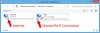
You should see something like this in Network Connections, if you have Hyper-V, Vm-Ware or any VPN software installed which create additional network connections, this can cause you problems, so disable them.
First download Maccheck and unzip the Maccheck to the root of your C:\ drive (or somewhere you can easily access it from)
Next open a Comment Prompt with Administrator Right (Right click on Command Prompt and click run as Administrator)
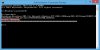
You cant to navigate to where Maccheck was saved, for me this was the root of my D:\ drive, so as you can see below i simply typed maccheck and my wireless network card was checked for comparability. The number 1's in the screenshot below means the card is compatible, if you get all 0's then your wireless card is not compatible.
Next you want to download the Nzone script and place this somewhere easy to access, just like you did with the Maccheck script
Download: Nintendo Zone (Nzone) Script
Again i saved this in the root of my D:\ drive.
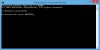
Start the script by navigating to the folder it is saved in with Command Prompt, then type nzone.vbs start BASE256 and press enter
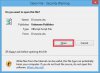
You will be asked to open the script:
This essentially configures a Virtual Wireless Adaptor on windows, shares the internet to it, then starts a scheduled task to change the mac address on the Virtual Wireless Adaptor so you can keep street passing people.
If you look in Network Connections (Control Pannel > Network and Internet > Network Connections) now you should now see that your internet connection has been shared to a Virtual Wireless Network called NZ@McD1
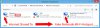
If you scan for wireless networks on a Wi-Fi enabled device, you should be able to see a new wireless network called NZ@McD
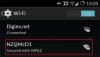
If you do then everything is setup, now you simply need to connect your 3DS to the NZ@McD1 wireless network to begin streetpassing people over the internet.
Setting the Nintendo 3DS up to StreetPass over the internet
First go to System Settings > Internet Setting > Connection Settings> and click on New Connection
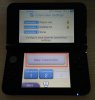
You should see the Nz@McD1 wireless network which is been hosted by your PC, click on that and set the connection up.
The password is nintendozone
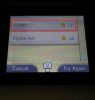
All been well your 3DS will be able to connect to this Access Point
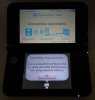
That's it, presuming you have some StreetPass enabled games you should be able to StreetPass over the internet when you are at home
FAQ / Common Problems:
How to see what games StreetPass has been enabled for?
Go to System Settings > Data Managment > StreetPass Management
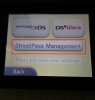
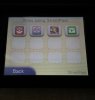
Here you can see the games / apps that is enabled for StreetPass on my 3DS, its worth mentioning that you have to have progressed quite far in some games such as Pokemon before you can enable StreetPass, its best to read up how / when StreetPass is enabled for the game you are looking to StreetPass on.
StreetPass Bugs / Problems and How To Fix Them:
StreetPass has some long standing bugs, which are nothing to do with Streetpassing over the internet. The last game you activate StreetPass on might not actually StreetPass with people. I had this problem, however apparently it does not affect everyone.
I wanted to StreetPass on Pokemon Omega Ruby, however i was getting StreetPass notifications for all games except this, despite StreetPass been enabled. What i did was deactivate StreetPass on Pokemon Y, which was getting loads of StreetPass's. Then load the game up and enable StreetPass again for Pokemon Y. This allowed my Pokemon Omega Ruby to start streetpassing people. It appears the last game you enable StreetPass will not actually StreetPass with other people at the moment, so you might need to disable StreetPass on another game and enable it again, so the game you want to use StreetPass with is not the last game you enabled StreetPass on if that makes sense.
I got some StreetPasses, now i can no longer get any more:
A random problem i have noticed is after getting a batch of StreetPasses I can no longer get any more, you can usually this by going to Network Connections. right clicking on your Ethernet connection (your internet connection), go to properties, then clock the sharing tab. Now un0check the box sharing the connection to the fake Nintendo Zone Hotspot. You must confirm this by clicking ok as below:
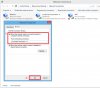
Now go back and simply share the internet connection again to the fake Nintendo Zone Hotspot and you should start receiving StreetPasses again:
How do i know if i have a Street Pass?
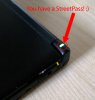
Simple, the light on the top right of your 3DS will flash green when you get a StreetPass, then stay constantly lit up green until you check your StreetPass notifications
StreetPass Screenshots:
Click the images for a full size screenshot:
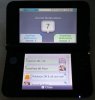
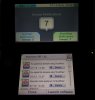
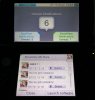
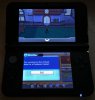
As you can see i've easily managed to StreetPass with people from various other regions over the internet.
Can I get the Eon ticket for Pokemon Omega Ruby / Alpha Sapphire?
Yes you certainly can, once i had got StreetPass setup for Omega Ruby i got an Eon Ticket after after Streetpassing for around two minutes! easy.
Final Words:
This tutorial is based on a script made by duke_srg over at gbatemp, this is by far the easiest way i have found to StreetPass over the internet and the only method which has worked for me. I have tried various other methods and had no luck. As most people probably have a PC / Laptop running Windows i thaught it would be worth my time doing a detailed tutorial explaning exactly how to set everything up and try and provide some solutions to common problems I found when learning how to do this.
This tutorial might look really long, however you will easily have everything setup and working in under 10 minutes. If you have any problems i can try and help you, however i have basically explained everything i currently know / problems i have experienced in this tutorial.
Happy StreetPassing, you will know if you StreetPass me online as my Mii Character says "go to Digiex.net"
What is swapped depends on that games you and the person you are StreetPassing have enabled, most people likely have StreetPass enabled for the Mii Plaza which comes pre installed on the 3DS, so if you StreetPass someone who has this enabled you swap Mii characters which can then help you out in the Mii Plaza mini games.
On games such as Pokemon Omega Ruby and Alpha Sapphire you can StreetPass people and obtain an Eon Ticket, which allows access to the Southern Island, where the Pokemon Latios or Latias can be found. Without StreetPassing someone who already has an Eon Ticket you would not be able to access this area of the game. So in some games StreetPass can have useful benefits.
The problem with StreetPass
Chances are you don't live in a major city, or take your 3DS everywhere with you, so finding people to randomly StreetPass can be difficult at times. This is especially true if you are looking to StreetPass someone who has a certain item you need for a game, like an Eon Ticket for Pokemon Omega Ruby and Alpha Sapphire.
However with a bit of trickery you can fool your 3DS in to thinking your PC is an Nintendo Zone Hotspot, which are usually found in Starbucks and McDonalds in the US. When you have done this you can StreetPass with people around the world from the comfort of your own home!
Setting up a Windows 7 or Windows 8 PC / Laptop To StreetPass
To follow this tutorial you will need:
- 3DS / 3DS XL / 2DS or a New 3DS XL
- A PC or Laptop with two network connections running Windows 7 or Windows 8
- One network connection must be Ethernet
- The other network connection must be Wi-FI
The Wireless network connection must not be in use, this will become our fake Nintendo Zone Hotspot.
You should see something like this in Network Connections, if you have Hyper-V, Vm-Ware or any VPN software installed which create additional network connections, this can cause you problems, so disable them.
First download Maccheck and unzip the Maccheck to the root of your C:\ drive (or somewhere you can easily access it from)
Next open a Comment Prompt with Administrator Right (Right click on Command Prompt and click run as Administrator)
You cant to navigate to where Maccheck was saved, for me this was the root of my D:\ drive, so as you can see below i simply typed maccheck and my wireless network card was checked for comparability. The number 1's in the screenshot below means the card is compatible, if you get all 0's then your wireless card is not compatible.
Next you want to download the Nzone script and place this somewhere easy to access, just like you did with the Maccheck script
Download: Nintendo Zone (Nzone) Script
Again i saved this in the root of my D:\ drive.
Start the script by navigating to the folder it is saved in with Command Prompt, then type nzone.vbs start BASE256 and press enter
You will be asked to open the script:
This essentially configures a Virtual Wireless Adaptor on windows, shares the internet to it, then starts a scheduled task to change the mac address on the Virtual Wireless Adaptor so you can keep street passing people.
If you look in Network Connections (Control Pannel > Network and Internet > Network Connections) now you should now see that your internet connection has been shared to a Virtual Wireless Network called NZ@McD1
If you scan for wireless networks on a Wi-Fi enabled device, you should be able to see a new wireless network called NZ@McD
If you do then everything is setup, now you simply need to connect your 3DS to the NZ@McD1 wireless network to begin streetpassing people over the internet.
Setting the Nintendo 3DS up to StreetPass over the internet
First go to System Settings > Internet Setting > Connection Settings> and click on New Connection
You should see the Nz@McD1 wireless network which is been hosted by your PC, click on that and set the connection up.
The password is nintendozone
All been well your 3DS will be able to connect to this Access Point
That's it, presuming you have some StreetPass enabled games you should be able to StreetPass over the internet when you are at home
FAQ / Common Problems:
How to see what games StreetPass has been enabled for?
Go to System Settings > Data Managment > StreetPass Management
Here you can see the games / apps that is enabled for StreetPass on my 3DS, its worth mentioning that you have to have progressed quite far in some games such as Pokemon before you can enable StreetPass, its best to read up how / when StreetPass is enabled for the game you are looking to StreetPass on.
StreetPass Bugs / Problems and How To Fix Them:
StreetPass has some long standing bugs, which are nothing to do with Streetpassing over the internet. The last game you activate StreetPass on might not actually StreetPass with people. I had this problem, however apparently it does not affect everyone.
I wanted to StreetPass on Pokemon Omega Ruby, however i was getting StreetPass notifications for all games except this, despite StreetPass been enabled. What i did was deactivate StreetPass on Pokemon Y, which was getting loads of StreetPass's. Then load the game up and enable StreetPass again for Pokemon Y. This allowed my Pokemon Omega Ruby to start streetpassing people. It appears the last game you enable StreetPass will not actually StreetPass with other people at the moment, so you might need to disable StreetPass on another game and enable it again, so the game you want to use StreetPass with is not the last game you enabled StreetPass on if that makes sense.
I got some StreetPasses, now i can no longer get any more:
A random problem i have noticed is after getting a batch of StreetPasses I can no longer get any more, you can usually this by going to Network Connections. right clicking on your Ethernet connection (your internet connection), go to properties, then clock the sharing tab. Now un0check the box sharing the connection to the fake Nintendo Zone Hotspot. You must confirm this by clicking ok as below:
Now go back and simply share the internet connection again to the fake Nintendo Zone Hotspot and you should start receiving StreetPasses again:
How do i know if i have a Street Pass?
Simple, the light on the top right of your 3DS will flash green when you get a StreetPass, then stay constantly lit up green until you check your StreetPass notifications
StreetPass Screenshots:
Click the images for a full size screenshot:
As you can see i've easily managed to StreetPass with people from various other regions over the internet.
Can I get the Eon ticket for Pokemon Omega Ruby / Alpha Sapphire?
Yes you certainly can, once i had got StreetPass setup for Omega Ruby i got an Eon Ticket after after Streetpassing for around two minutes! easy.
Final Words:
This tutorial is based on a script made by duke_srg over at gbatemp, this is by far the easiest way i have found to StreetPass over the internet and the only method which has worked for me. I have tried various other methods and had no luck. As most people probably have a PC / Laptop running Windows i thaught it would be worth my time doing a detailed tutorial explaning exactly how to set everything up and try and provide some solutions to common problems I found when learning how to do this.
This tutorial might look really long, however you will easily have everything setup and working in under 10 minutes. If you have any problems i can try and help you, however i have basically explained everything i currently know / problems i have experienced in this tutorial.
Happy StreetPassing, you will know if you StreetPass me online as my Mii Character says "go to Digiex.net"





