

Nimrod
Dev Ops
- Joined
- Jun 1, 2007
- Messages
- 1,514
On the SoYouStart control panel you can fresh install Esxi 5.0, however this is quite an old version with 5.1 and 5.5 being released. However, you can upgrade it within just a few minutes without waiting for OVH to release a pre-made installer for them. All that’s required is an SSH client (like Putty on Windows, or Terminal on Mac) and a few commands.
Let's get started:
First of all, SSH into your Esxi installation using Putty (or Terminal).
Copy and paste the below command and press enter:
You will then get a result like below:
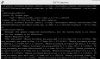
Your notice the first attempt I did, I got a broken pipe (Errno 32) on VMware_locker_tools_light
This was due to the fact the server was running VM’s (or the vSphere connection) at the time. To get past this, I put the server into Maintenance Mode using the vSphere client as below:
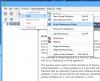
Then give it another go, you should then get a successful response like on my second attempt on the first screenshot.
Update: If you don't have vSphere you can use SSH to put your box into Maintenace Mode with the below command:
Now stop just a moment before you reboot the box and enjoy your new 5.5 installation. Sadly 5.5 out of the box doesn’t have the network card (NIC) drivers needed for your SYS-E32 server. If you rebooted now it would be a disaster and you wouldn’t be able to get it back online without reinstallation.
However an awesome community member called Chilly has compiled the latest Intel drivers for ESXi 5.5 which can be installed, just do the below:
First of all, enable CommunitySupported VIB’s to be installed by running the below command:
Then run this command to install them:
All going well you should get the below:

At this stage, you can successfully type ‘reboot’ and let your box reboot itself onto 5.5. All going well, in a couple of minutes you can connect your vSphere client to your box and get the nice error messaging saying you need to update your client to 5.5. Update and you are good to go!
Hope this helps.
Let's get started:
First of all, SSH into your Esxi installation using Putty (or Terminal).
Copy and paste the below command and press enter:
Code:
esxcli software profile install -d http://hostupdate.vmware.com/software/VUM/PRODUCTION/main/vmw-depot-index.xml -p ESXi-5.5.0-1331820-standard --ok-to-removeYou will then get a result like below:
Your notice the first attempt I did, I got a broken pipe (Errno 32) on VMware_locker_tools_light
This was due to the fact the server was running VM’s (or the vSphere connection) at the time. To get past this, I put the server into Maintenance Mode using the vSphere client as below:
Then give it another go, you should then get a successful response like on my second attempt on the first screenshot.
Update: If you don't have vSphere you can use SSH to put your box into Maintenace Mode with the below command:
Code:
vim-cmd /hostsvc/maintenance_mode_enterNow stop just a moment before you reboot the box and enjoy your new 5.5 installation. Sadly 5.5 out of the box doesn’t have the network card (NIC) drivers needed for your SYS-E32 server. If you rebooted now it would be a disaster and you wouldn’t be able to get it back online without reinstallation.
However an awesome community member called Chilly has compiled the latest Intel drivers for ESXi 5.5 which can be installed, just do the below:
First of all, enable CommunitySupported VIB’s to be installed by running the below command:
Code:
esxcli software acceptance set --level=CommunitySupportedThen run this command to install them:
Code:
esxcli software vib install -v http://files.v-front.de/net-e1001e-1.0.0.x86_64.vibAll going well you should get the below:
At this stage, you can successfully type ‘reboot’ and let your box reboot itself onto 5.5. All going well, in a couple of minutes you can connect your vSphere client to your box and get the nice error messaging saying you need to update your client to 5.5. Update and you are good to go!
Hope this helps.





