I decided to create this tutorial as a definitive guide to updating the Bluetooth/USB firmware, due to a lack of other information available online!
If you've recently bought a 2008-2012 Ford with bluetooth audio and USB, or perhaps if you've retro-fitted the Bluetooth/USB/voice control components, you might need to update the firmware in order to ensure proper compatibility with iPhones and modern devices. Also, these updates improve iPod reliability and compatibility and allow the audio to be transmitted over USB in order for the audio system's DAC to decode it instead of having to have the 'aux' lead attached at the same time.
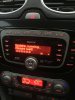
The illustrative photo in this guide shows me performing the update to my 2010 Mondeo's Ford/Blaupunkt NX touch-screen nav system, but it works with any USB-capable audio system (for example the Sony 6 CD/DAB unit) in any the vehicles listed below.
This tutorial applies to anyone who owns one of the following vehicles and build dates, with the bluetooth and USB audio interface. If you are unsure of your vehicle's build date, check by looking it up at www.etis.ford.com.
C-Max - February 2008 to January 2012
Fiesta - July 2008 to December 2011
Focus - February 2008 to January 2012
Galaxy - September 2008 to January 2012
Kuga - February 2008 to January 2012
Mondeo - September 2008 to January 2012
Ranger - From April 2009
Transit - From June 2009
Preparation:
1. Download the update from here: Download Ford Audio Bluetooth / USB firmware update - November 2012 release
2. Format a USB memory stick, ensuring the file system is set to FAT32
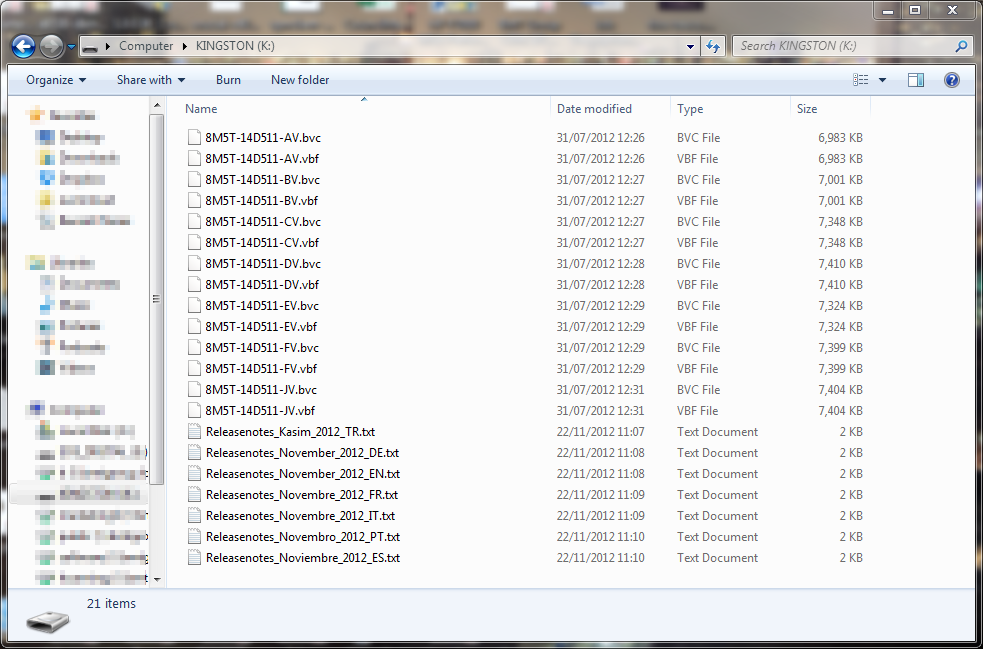
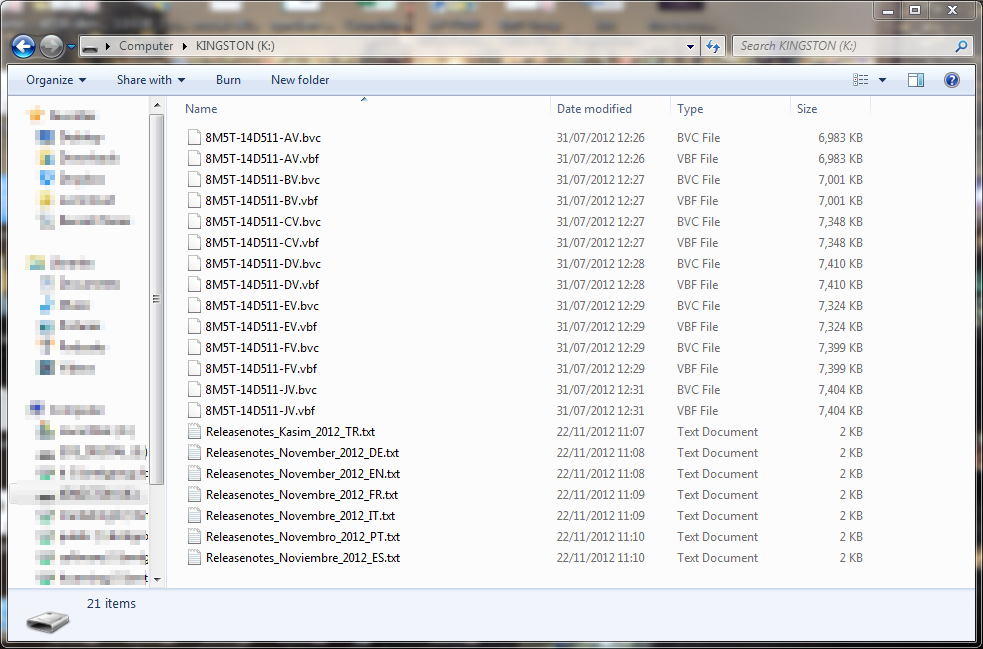
3. Unzip the contents (all 21 items) of the zip file you just downloaded, and copy them to the root of the memory stick, i.e. without placing them in any folders. The contents of the memory stick should appear as below:
Now, head to your car, unlock it, get in, and follow the steps below carefully:
1. Make sure your climate control is completely switched off to avoid the blower fan running which will cause the battery to drain faster. It's probably best to do this update after the vehicle has been driven for around 15 minutes or longer, to ensure the battery is freshly charged. If you receive low battery warnings during this procedure, it may cause the audio system to shut down and the update to fail.
In reality you should be absolutely fine, and my battery is probably just past its best (yes, I received a 'low battery' message when I did the first update), but it's worth being cautious!
2. Switch on the radio WITHOUT turning on the ignition
3. Insert the memory stick into the USB socket
4. If nothing appears on the screen, switch to the AUX/USB input. You will then receive a message stating that there are no media files on the device.
5. Now switch the ignition on but do not turn the engine on. If you don't have keyless start, turn the key two clicks to turn the ignition on. If you do have keyless start, press the button WITHOUT depressing the clutch (manual) or brake (automatic).
6. Now the radio should initialise and perform the update. It will display "Update running" (or words to that effect).
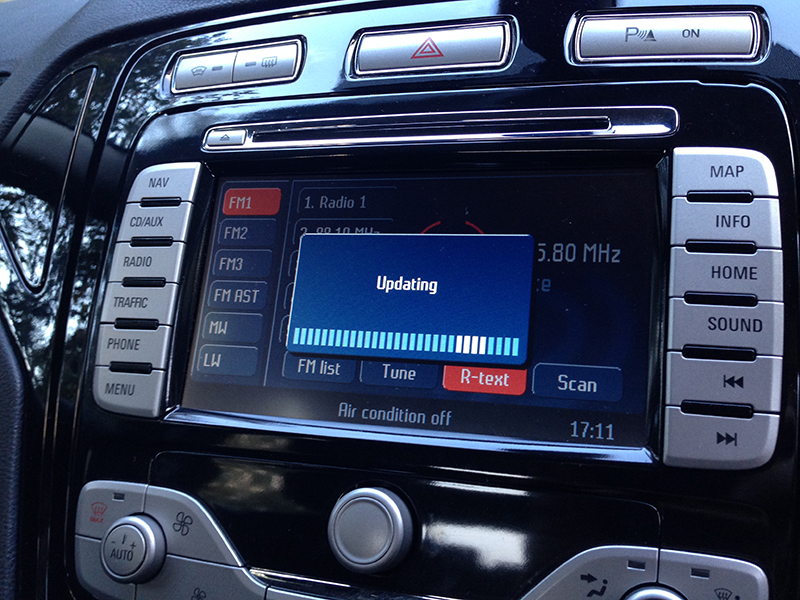
7. DO NOT switch off the ignition, or switch on the engine during this time. The update will take up to 20 minutes to apply, and it feels a lot longer if you're sitting watching it! Now would be a good time to make a cup of tea.
Once the update is finished, you will receive a confirmation message on the display briefly, and then it will switch back to radio playback. Power off the radio, then power it back up again and check the USB and Bluetooth functionality.
At this point, you're all done!
The release notes of the updates to date are shown below:
If you've recently bought a 2008-2012 Ford with bluetooth audio and USB, or perhaps if you've retro-fitted the Bluetooth/USB/voice control components, you might need to update the firmware in order to ensure proper compatibility with iPhones and modern devices. Also, these updates improve iPod reliability and compatibility and allow the audio to be transmitted over USB in order for the audio system's DAC to decode it instead of having to have the 'aux' lead attached at the same time.
The illustrative photo in this guide shows me performing the update to my 2010 Mondeo's Ford/Blaupunkt NX touch-screen nav system, but it works with any USB-capable audio system (for example the Sony 6 CD/DAB unit) in any the vehicles listed below.
This tutorial applies to anyone who owns one of the following vehicles and build dates, with the bluetooth and USB audio interface. If you are unsure of your vehicle's build date, check by looking it up at www.etis.ford.com.
C-Max - February 2008 to January 2012
Fiesta - July 2008 to December 2011
Focus - February 2008 to January 2012
Galaxy - September 2008 to January 2012
Kuga - February 2008 to January 2012
Mondeo - September 2008 to January 2012
Ranger - From April 2009
Transit - From June 2009
Preparation:
1. Download the update from here: Download Ford Audio Bluetooth / USB firmware update - November 2012 release
2. Format a USB memory stick, ensuring the file system is set to FAT32
3. Unzip the contents (all 21 items) of the zip file you just downloaded, and copy them to the root of the memory stick, i.e. without placing them in any folders. The contents of the memory stick should appear as below:
Now, head to your car, unlock it, get in, and follow the steps below carefully:
1. Make sure your climate control is completely switched off to avoid the blower fan running which will cause the battery to drain faster. It's probably best to do this update after the vehicle has been driven for around 15 minutes or longer, to ensure the battery is freshly charged. If you receive low battery warnings during this procedure, it may cause the audio system to shut down and the update to fail.
In reality you should be absolutely fine, and my battery is probably just past its best (yes, I received a 'low battery' message when I did the first update), but it's worth being cautious!
2. Switch on the radio WITHOUT turning on the ignition
3. Insert the memory stick into the USB socket
4. If nothing appears on the screen, switch to the AUX/USB input. You will then receive a message stating that there are no media files on the device.
5. Now switch the ignition on but do not turn the engine on. If you don't have keyless start, turn the key two clicks to turn the ignition on. If you do have keyless start, press the button WITHOUT depressing the clutch (manual) or brake (automatic).
6. Now the radio should initialise and perform the update. It will display "Update running" (or words to that effect).
7. DO NOT switch off the ignition, or switch on the engine during this time. The update will take up to 20 minutes to apply, and it feels a lot longer if you're sitting watching it! Now would be a good time to make a cup of tea.
Once the update is finished, you will receive a confirmation message on the display briefly, and then it will switch back to radio playback. Power off the radio, then power it back up again and check the USB and Bluetooth functionality.
At this point, you're all done!
The release notes of the updates to date are shown below:
Release: November 2012
The update to your Ford Bluetooth and multimedia module provides you with improvements in the following areas:
- Improved energy management in connection with USB and Bluetooth devices
Release: April 2012
The update to your Ford Bluetooth and multimedia module provides you with improvements in the following areas:
- Playback of music files via the USB stick
- Connection stability of iPod/iPhone devices
- Connection stability for Bluetooth, telephony and music streaming via Bluetooth
- Compatibility of mobile phones
Release: October 2011
The update to your Ford Bluetooth and multimedia module provides you with improvements in the following areas:
- Supports the original Apple USB cable
- Apple iOS 5 compatibility: display of the phones battery level and signal strenght
- Apple iOS 5 compatibility: improved stability for music streaming via Bluetooth
- Playback of music files via the USB stick
- Connection stability of iPod/iPhone devices
- Connection stability for Bluetooth, telephony and music streaming via Bluetooth
- Compatibility of mobile phones
- Display of phone book and call lists