

Nimrod
Dev Ops
- Joined
- Jun 1, 2007
- Messages
- 1,514
Xbox Music is a great alternative to other streaming providers like Spotify and Pandora in that it supports Radio Discovery with unlimited skipping, as well as a massive catalog of music to stream on demand. For many countries, the catalog in Xbox Music is double the size of Spotify, as well as being cheaper than an Spotify Premium account (with the option of further discounts if you pay a year upfront – in the United Kingdom for example its £89 for an Xbox Music Pass for a year, vs £120 for Spotify!).
Sadly however, while there is native Applications for Windows, iPhone/iPad, Android, Windows Phone and Xbox, Microsoft as of yet haven’t yet made a version for Mac OSX. I’m hoping further down the line they will as they do want to compete with iTunes Streaming when it comes, as well as Spotify and other providers who do cater for the Mac crowd.
However, following this Step by Step Guide you can turn the Web Version of Xbox Music into a fully Native App on Mac OSX, with an excellent look and feel (you won’t even realize it’s running as a Website!).
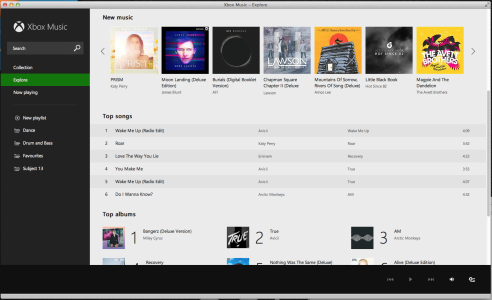
Even though it’s a Website running inside the Native Mac App, the Web Version of Xbox Music is almost identical to the Windows 8 Application in terms of features and look and feel. In fact, it even has some major benefits:
Upsides compared to Windows 8 App:
* Can run in a Window allowing better multitasking
* Search is a lot faster compared to the Windows 8 version
* Playlist Management is a lot smother, including support for drag and drop which is a big win over the native Windows app.
Downsides compared to Windows 8 App:
* Missing Radio – Xbox Music website says this will be added before the end of the year
* Inability to play local music files on your PC, but if your using a Mac its highly likely iTunes will be handling local files
* No Offline Mode sadly, this is one feature that could never be added unless Microsoft produce it’s own native App for Mac down the line.
The process to set this up is really easy, and only takes a few minutes.
Step 1: Download FluidApp for Mac
You can download FluidApp either directly from this Guide by clicking here or from the official Authors Website Fluidapp.com.
Once Downloaded, unzip and Run Fluid.App
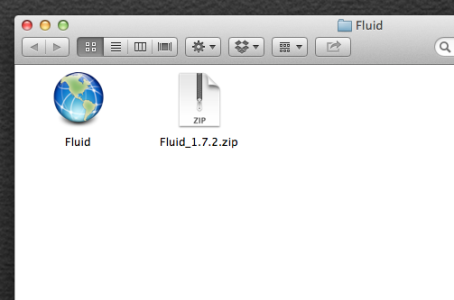
Step 2: Setting up the Xbox Music App on Mac OSX
As soon as the app open's, you will be presented with the below screen:
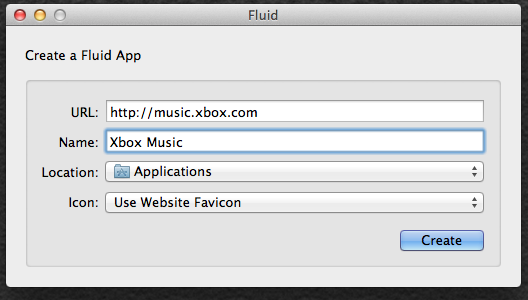
Enter the URL as: http://music.xbox.com
The Name as: Xbox Music
You can set the location as somewhere different, but I’d recommend Applications to go with your other Apps
The favourite icon allows you to change the icon which the Native app uses, I’m quite happy with the default Green one but if you wanted to you could set your own image here.
Once done, click Create and you will get the below confirmation:
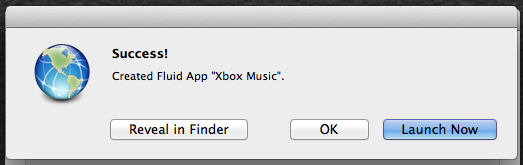
And that’s all there is to it. You will find a nice Icon in your Applications area like so:
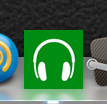
I’d recommend pinning to your Dock, but that’s up to you.
Fire it up, and enjoy your Native Xbox Music experience on Mac!
Note: You may need to sign into your Microsoft Account on first load, but set it to remember you during login to skip this step on further application launches.
Once you have done this, you can successfully delete the Fluid Application and zip file you downloaded as it’s no longer needed now your Native App is created.





