

Nimrod
Dev Ops
- Joined
- Jun 1, 2007
- Messages
- 1,514

PlexConnect is a great way to get your Plex library on any Apple TV regardless of if its jailbroken or not. It takes over the Apple Trailers app and instead provides your entire Plex Library.
However recently Apple forced SSL on the trailers App in an attempt to stop people hijacking it and replacing it with other content like Plex, luckily by following the below you can quickly install a fake certificate onto your AppleTV and your PlexConnect and get normal service resuming very quickly.
Step 1: Generating your Trailer’s Certificate
To begin with, we need to generate a certificate for the Apple Trailers domain. This is easy to do on Mac OSX, all you need to do is fire up a terminal window and enter the first line of code:
Code:
openssl req -new -nodes -newkey rsa:2048 -out ~/Desktop/trailers.pem -keyout ~/Desktop/trailers.key -x509 -days 7300 -subj "/C=US/CN=trailers.apple.com"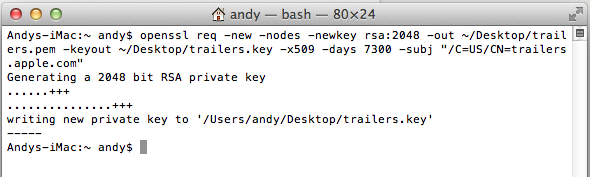
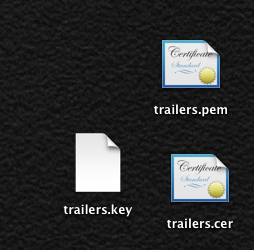
This will generate two files which will be sitting on your Desktop. Next, run the below line of code:
Code:
openssl x509 -in ~/Desktop/trailers.pem -outform der -out ~/Desktop/trailers.cer && cat ~/Desktop/trailers.key >> ~/Desktop/trailers.pem
All done, you should now have three files sitting on your desktop. trailers.pem, trailers.cer and trailers.key
Step 2: Installing Certificates onto AppleTV
Connect your Apple TV to the mains first (this is important, otherwise your device will go into recovery mode), secondly connect the Apple TV to your Mac via a Micro USB cable.
Next, install the Apple Configurator from the Mac App Store (don’t worry, it’s free!). Link to Apple Configurator: https://itunes.apple.com/gb/app/apple-configurator/id434433123?mt=12
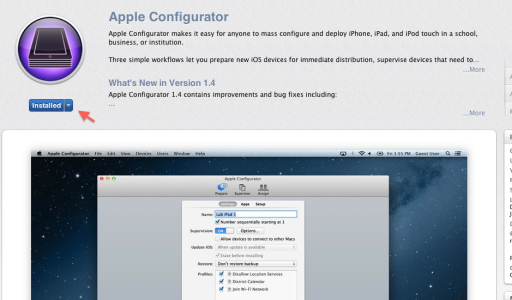
Once installed, open it up and click the Prepare Tab on the top. Your need to give it a Name (I just used appletv-fix, but you can use any). Untick the Erase before installing tixbox like below then click ‘Install Profiles…’
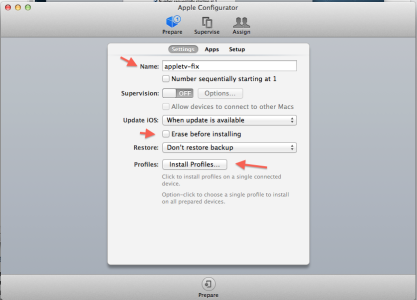
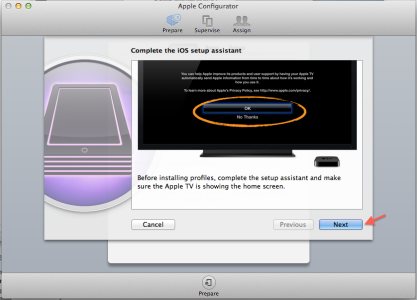
Providing your AppleTV is connected correctly, you will then see the below screen on which you just need to click Next:
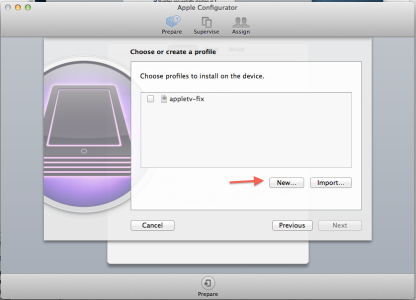
You will then be given the choice to create a new profile or install a pre-made profile. At this stage unless you have done this before you will have pre-made profiles in which case you click ‘New…’
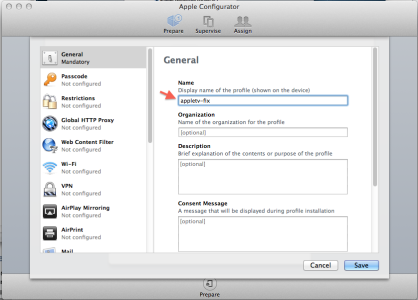
On the new page you will start in the general tab, repeat the name you entered before:
Then scroll down on the left hand side to the Certificates Tab and click Configure:
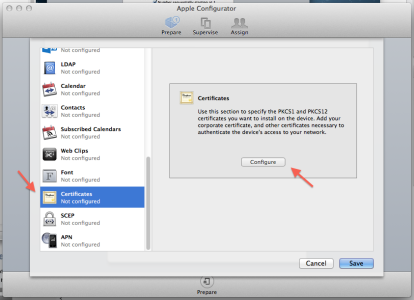
Locate the .cer file from the certificate files you made in Step 1 and click ‘Open’.
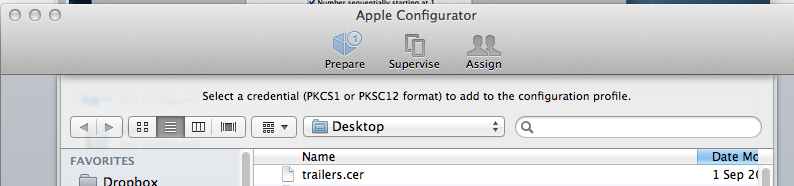
Once done, you should see the certificate loaded into your Profile:
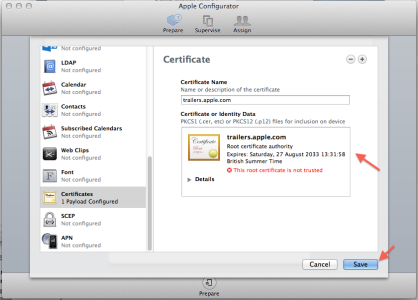
Click ‘Save’ and you’re done!
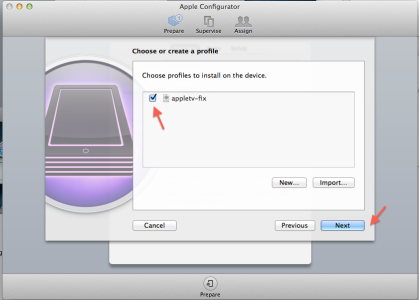
You are now ready to install to the device, tick your new Profile and click the Next button to install:
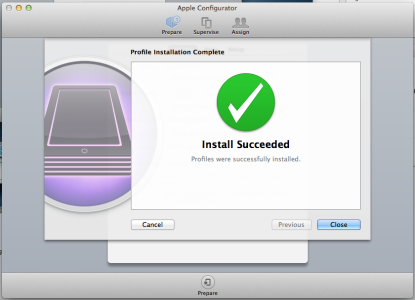
All going well, you will be presented with a Green Tick like below and your Apple TV is ready to go with your self-generated certificate!
Step 3: Installing Certificates into PlexConnect
This step is easy, just take the trailers.pem file created in Step 1, and place in the /assets/certificates folder in your PlexConnect like so:
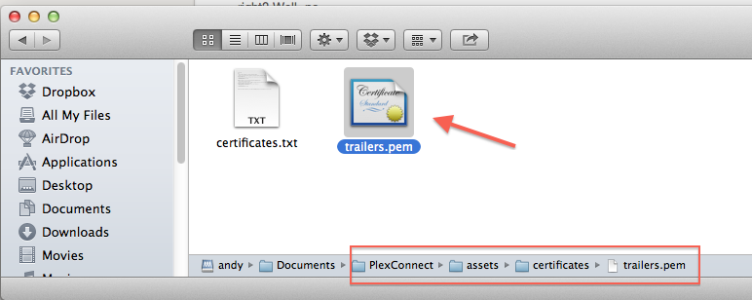
If the folder doesn’t already exist, make sure your running the latest PlexConnect and make the folder if all else fails.
In your Settings.cfg the below line should already exist (but if not, add it):
Code:
certfile = ./assets/certificates/trailers.pem
port_ssl = 443
- Credit goes to Paul Kehrer who found this workaround.





