Hoffman
Veteran
- Joined
- Jun 1, 2007
- Messages
- 1,823
Step by Step Guide to purchasing content from US Xbox Store from any region
This Step by Step Guide will take you through how to purchase Game’s from the US online Xbox Store on your Xbox One from outside the US.
There are a few reasons you may consider doing this:
- Take advantage of cheaper game prices from the US Store. Due to the weaker dollar and poor pricing outside the US on the Xbox Store, you can buy games a lot cheaper if you purchase them from the US in Dollars. An example being any newly released Xbox One game cost’s £59 in the UK, where’s in the US it’s $59, with $59 when transferred at time of writing is only £38, (That’s a £21 saving on a game!).
- Break Launch Dates for regions outside the US. While most publishers are decent these days and appreciate the global connected world we are in, there are a few which are run by backwards idiots who feel European or worldwide users should wait days, if not weeks for a game after the US version has released. One prime example is the upcoming Titanfall published by EA (Electronic Arts), who feel that users in the United Kingdom and the rest of Europe should wait 4 days later than their US counter-parts for no apparent reason.
- Or if you live outside the official Xbox Store supported regions, if you do not have access to the Xbox Store in your native country, you need to attach yourself to one. I’d recommend based on exchange rates for best value and a bigger range of content that it’s worth attaching yourself to the US store.
Before you do this, you will need to be aware of the following requirements:
You will need a US Billing Address. This can either be totally made up (and has been confirmed working by many people), or can be a real one. For the purpose of this, I actually used a friends address in the US just incase later down the line Microsoft wanted to verify it (they haven’t yet), at least then my US friend can just confirm the address on my behalf.
You will need some form of payment which can be used in the US Store. You can use any of the below (only need one) -
- Pre-paid Xbox Store codes in US Dollar’s which can easily be purchased online, or by friends/family who live in the US
- A PayPal account (doesn't matter if its registered in the UK, Australia or anywhere else).
- A Credit Card which works in US site’s regardless of the billing address not matching (Some of my UK one’s worked, some didn’t so it’s a bit hit and miss).
However, you DO NOT need a VPN or an American Proxy to complete this.
Once you have everything you need, you are ready to go ahead with this guide. You will be shocked how easy this is, it appears Microsoft have gone a long way since the original Xbox 360 days and opened up accounts to jump between regions on the fly quite easily. Since following this, my UK based Gamertag now has UK and US billing information attached to it allowing me to jump between Stores as and when needed. It also has NOT affected any of my current UK bought games so this at time of writing is perfectly safe to do.
Please note this tutorial is for the Xbox One, not the Xbox 360. To digitally import Xbox 360 game is a bit more complicated and requires the use of a VPN. We have a tutorial for that also. Have a read of it here: Xbox 360 VPN setup for Xbox Live - Buy DLC & Games on Demand from Other Regions
Step 1: Pointing your Xbox One to the US Store
This is the easiest step to complete, all you need to do is turn on your Xbox One and open up the Settings Application. In there, select ‘System’ and then select ‘Language & Location’. Once done, set your current location to the United States like below and press restart:
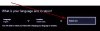
Once done, you’re Xbox One will reboot and connect you to the US Marketplace! If you attempt to buy anything at this stage, you will find your payment methods don’t exist and it will ask you for new ones. This is because your payment methods and current credit (if you have any) are attached to your previous region’s store. Don’t worry, you haven’t lost any money you previously had on your account, if you switch back to your old region you can go ahead and use them. That’s what’s so great about the new region options, you can jump between them on demand.
Step 2: Adding some Payment Methods to the US Store
For the next step, we recommend doing this on a web browser as it’s a lot easier. Head on down to Xbox.com and sign in with your account. Once signed in, scroll to the bottom left and you will see your country, select it and it will bring up the Change Locale Screen.
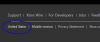
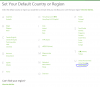
Select the United States and the page will refresh. Once this has done, select ‘My Account’ at the top and then select ‘Payment & Billing’.
Please keep an eye at this stage and make sure your location hasn't changed back to your original locale. You can either check in the bottom left or look in the address bar and make sure ‘en-US’ is still present.

If at any time it isn't, you need to switch it back. If you find your browser keeps going back often and making it difficult to proceed, I’d recommend trying another one, or using Private Browsing mode if your web browser supports it. I find I had this a lot when using Chrome but managed with no problem’s in Firefox (could be a cookie related issue, but I didn't want to clear all my cookies).
Here you have a few choices depending on how you wish to purchase:
Pre-paid codes
If you already have pre-paid codes just go ahead and select Redeem Code.
What I did for this, was ask a US based friend to purchase this (multiple price points available): Newegg.com - Microsoft Xbox Gift Card $60 US (Email Delivery)
They will usually receive a code in less than an hour and all they need to do is tell you the code and you are all set. Please note however that Newegg requires a US Billing address before completing the order so it will require you to know someone in the US who can do the purchase on your behalf (unlike Xbox, Newegg seem's to actually try to verify the address in some cases for those of you thinking of faking it!).
There are sites out there which can sell you US Gift Card's outside of the US, but they either add a premium to the cost, or don't look entirely trustworthy. As such I won't be linking to any, but if it's your only choice then by use of a search engine you will find some. If you do find a good priced and trustworthy site to purchase them from, please by all means share with everyone by posting a reply to this Guide.
PayPal
You can pay with PayPal regardless of the region your PayPal account is made in (it doesn't need a US address or US bank account attached to it). You will just be charged in US dollars for purchases and the exchange rate at the time of purchase will factor into the total cost.
If you wish to add PayPal then you need to click 'Add PayPal' on the left hand side.
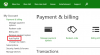
It will at this stage ask you for your billing address before it will let you connect with PayPal. Either use your friends/families address if you have one, or alternatively make one up.
If you are making one up, please be aware that some US states have sales tax, where others do not. Oregon is a good state to pick if you can which has no US sales tax. If you are struggled to make one up, I've heard people use Google and find a hotel or restaurant and use their address. Be aware, making one up is entirely at your own risk however! Try to use a real family or friends address if possible.
Once the address is entered just select ’Next’ and go ahead and link it up to your PayPal account.
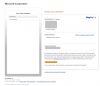
I did this even though my UK account was linked to PayPal with no problem allowing me to use the same PayPal on both my home region, and the US region store. I even left my UK address on the 'Postal address' on the PayPal screen below with no problems.
Credit Card
Alternatively if you want to try your credit or debit card, you can select Manage Payment Options and click ‘Add Credit Card’. Again you will need to put in the billing address and then your details.
Just like with PayPal guide as above, be aware of states that have added sales tax and try to avoid them, and if possible try and use a real address of a friend or family member living in the States.
Using a non-US credit card here with a fake billing address could cause the payment later to fail when you try to purchase content, so I would usually recommend avoiding this unless it is your only option.
I found my Debit Card worked fine, and one of my credit cards did, but the other didn't so it is honestly hit and miss here.
That’s it, you are now ready to purchase some content!
Step 3: Purchase and Download content from the US Store
Now you have some payment methods attached and your Xbox One in the US store, you are free to go ahead and purchase content to your heart’s content. Please be aware that while games are region free and not location blocked, you may find Apps and Media may be (for example Netflix, Hulu, Xbox Video etc). However for games so far I’ve had no problems.
When purchasing games, you can either do it on the website (though make sure your locale is set correctly as per step 2) or via the console (again make sure it’s pointed to the US store as per step 1). I personally recommend that until the game is fully downloaded onto your Xbox that you keep it set to United States location and for the first time you run the game. The reason I recommend this is because I've heard reports from some Australian user's that because they purchased a game that hasn't been released in their region yet (was due for release 2 days later) it got stuck at 99% downloaded until it was released because their console region was set to Australia, but by deleting it and switching the console region to US then re-downloading it, it unlocked instantly (This ONLY affects games not released in your region yet however).
Once you have run it once, feel free to switch your Xbox’s location (as per step 1) back to your original country and enjoy.
Hope this guide helps you, and not only saves you lot’s of cash but also break street dates for those publishers who feel non-US people aren't entitled to enjoy games on launch day!
Extra: Managing your account and balances across regions
Just to first note, while this guide talked about the US Store, you can repeat these steps for any other regions to. This includes getting games that only come out in Japan, or by taking advantage of deals in Canada for example. There is no limit to the amount of regions you can add onto your Xbox One account, providing you have a billing address and payment option for each.
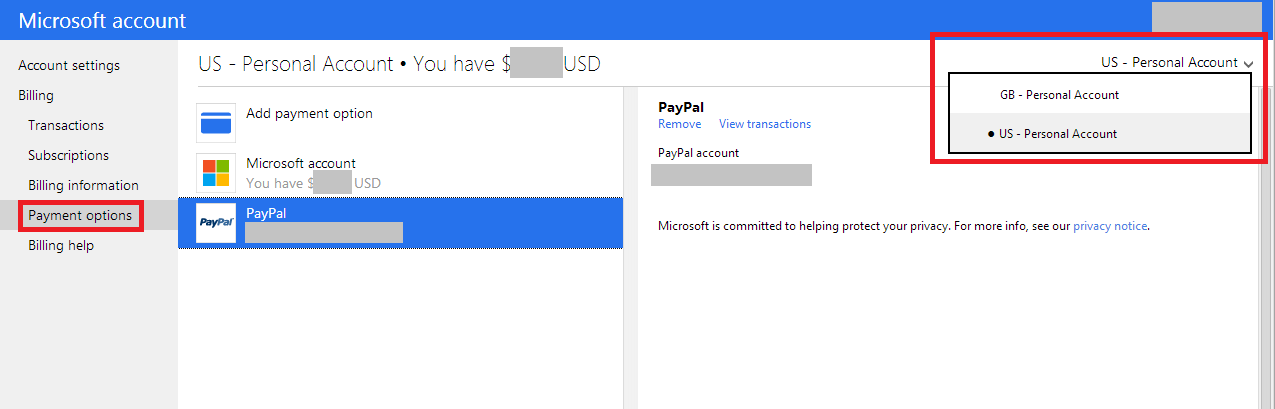
However, now your account may become a little confusing with all these different balances and region's store, especially if down the line you wish to remove any payment methods or see your balances without having to constantly switch regions on your console or the Xbox.com website. The good news is that Microsoft has a Commerce site where you can view your balances as well as add and remove payment methods easily per region.
In your browser just go to: Microsoft Commerce
Once here, you can change the billing account you wish to modify on the right hand side, as well as Add or Remove payment methods, add pre-paid codes and so fourth with ease. Also if you used a fake billing address for example, here you can change it if you now have a valid one or if you wish to clear it.
Any question's just post below. I'll keep this guide updated if there is any changes down the line or new discoveries.
If you liked this guide and it worked for you, please help spread the word! The more and more people who have awareness of this, the more we can show to publishers that we won't take being overcharged outside the US and that same-day worldwide releases need to become the standard (looking at you EA, it's not the 1990's anymore). Please share the URL to this guide on forums, reddit, social media etc
 Take a stand for fairness!
 represent that you are authorized to use the payment method that you provided and that any payment information you provide is true and accurate;

 Thanks Hoffman.